wanno is built for the phone first, not adapted to it. That shows in the details: you describe an app by typing or speaking, you edit it by tapping and swiping the live preview, and you publish it from the same screen. This walkthrough goes through every step of the flow using a small project — a cat that follows your finger and gets angrier the faster you move — so you can see what each part of the app does. The result is live at angry-cat-follower.wanno.dev.
wanno is a free download for iPhone and Android:
- iOS: Download on the App Store
- Android: Get it on Google Play
1. Home: describe what you want
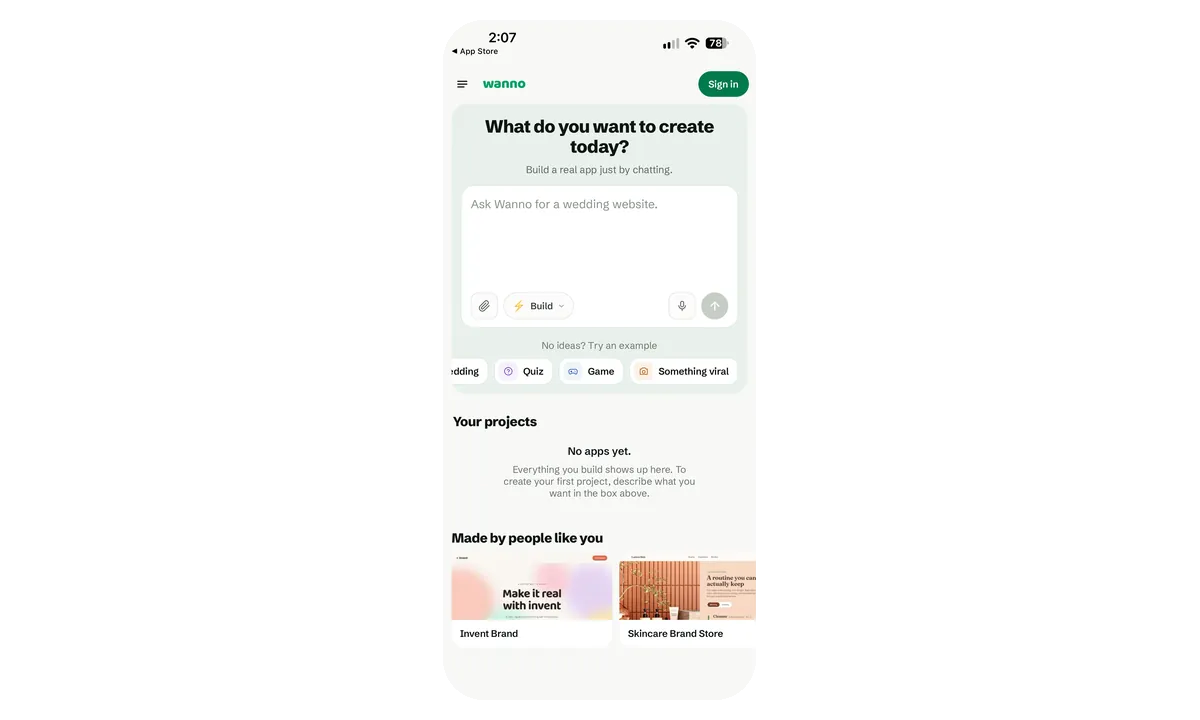
The home screen is a single input: What do you want to create today? There's no template gallery or project setup step before it. Under the box you have a paperclip to attach a reference, a mode selector (Build), a microphone to dictate the prompt, and example chips (Wedding, Quiz, Game, Something viral) if you want a starting point.
2. Write the prompt in plain language
This is the prompt used for the example:
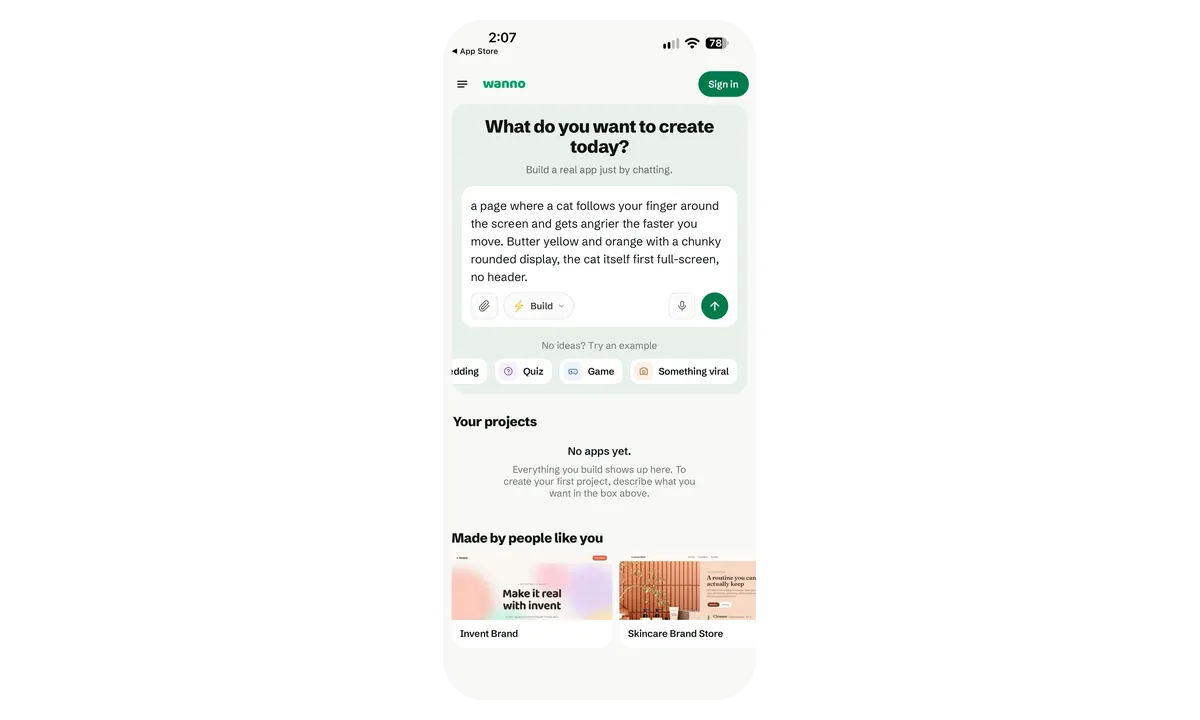
a page where a cat follows your finger around the screen and gets angrier the faster you move. Butter yellow and orange with a chunky rounded display, the cat itself first full-screen, no header.
A description of the behavior, a color direction and one layout constraint is enough. You don't need to think in components or screens.
3. Builder: the build starts right away
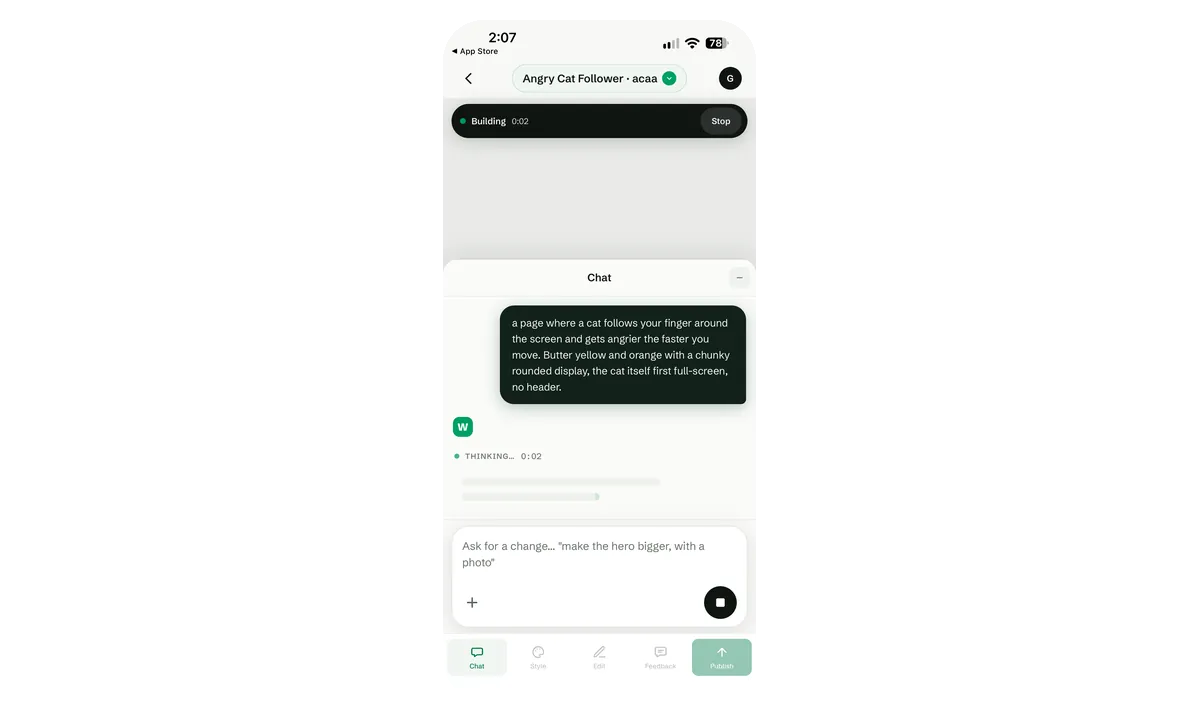
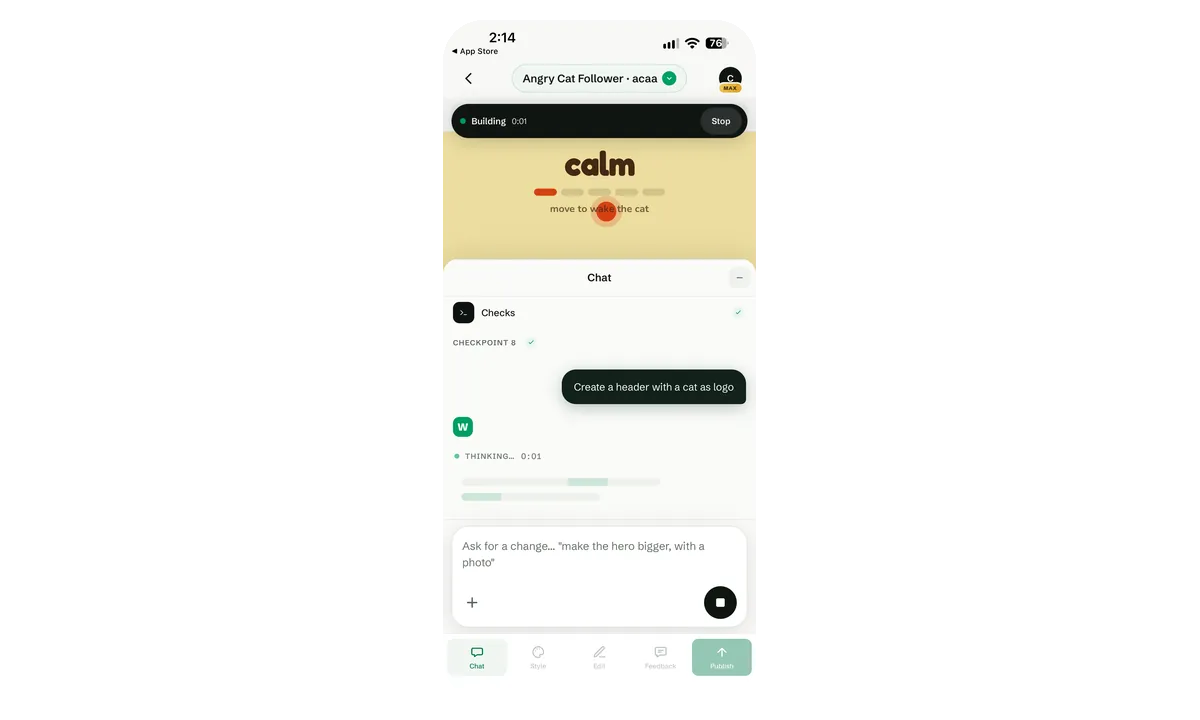
After sending, you land in the builder. It has two areas: the live preview at the top and the chat at the bottom, which you can collapse. The status bar shows Building with a timer and a Stop button, and wanno's first response appears as Thinking….
4. Builder: wanno explains what it's building
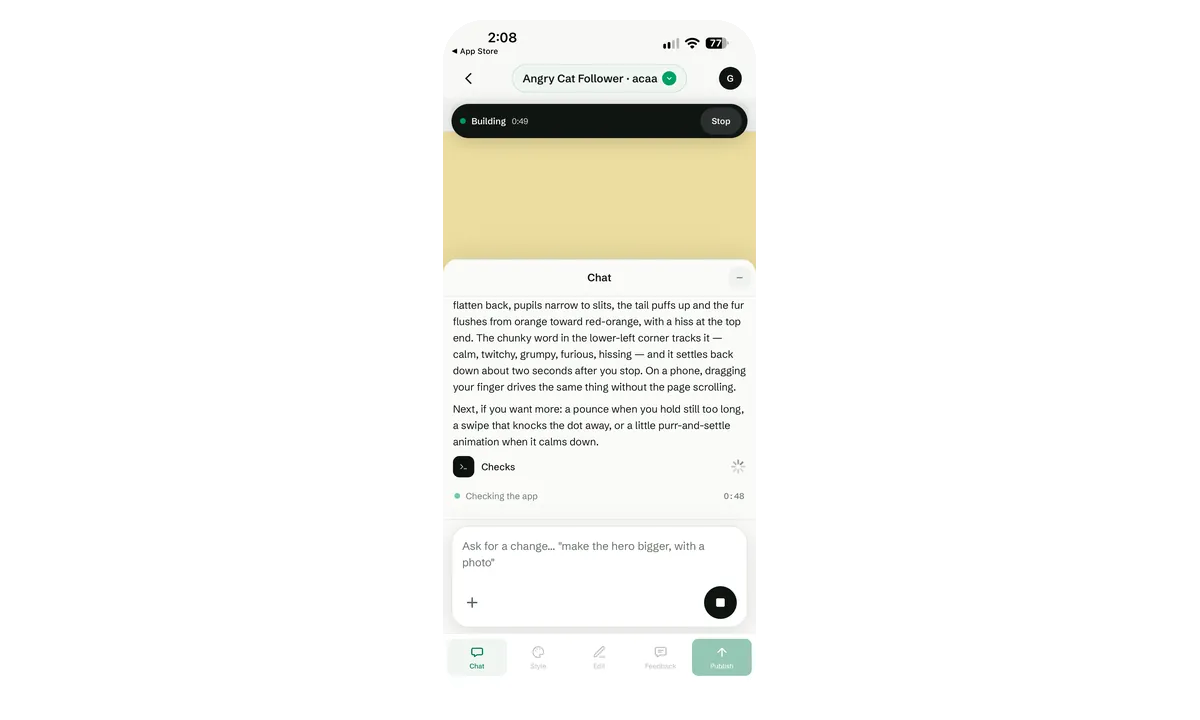
While it works, wanno describes the app in plain language rather than showing code: how the cat's ears, pupils, tail and fur change with speed, the mood word that tracks it (calm, twitchy, grumpy, furious, hissing), how it settles down when you stop, and that dragging on a phone works without the page scrolling. It also suggests follow-ups you could ask for next. Before handing over, it runs a Checks step on the app.
5. The app is running
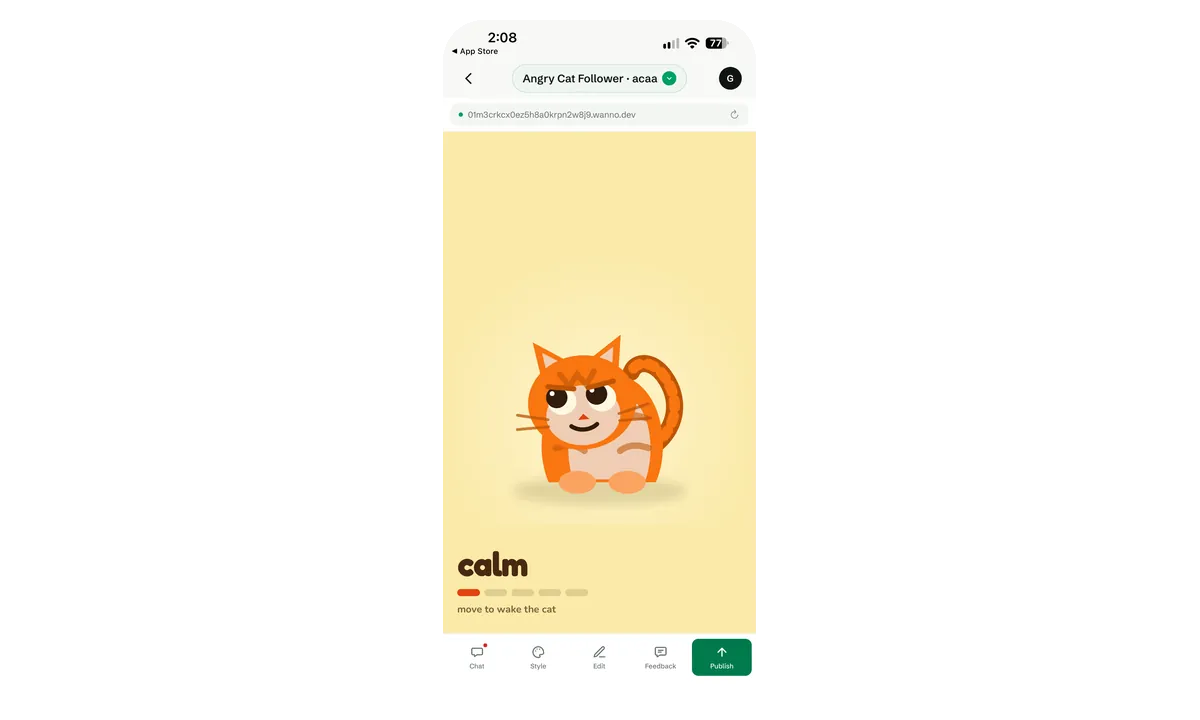
Once the build finishes, the preview shows the working app on a temporary .wanno.dev address. It's a real page you can interact with inside the builder — here, a full-screen cat with a mood meter and the hint move to wake the cat.
6. Sign in when you're ready to edit
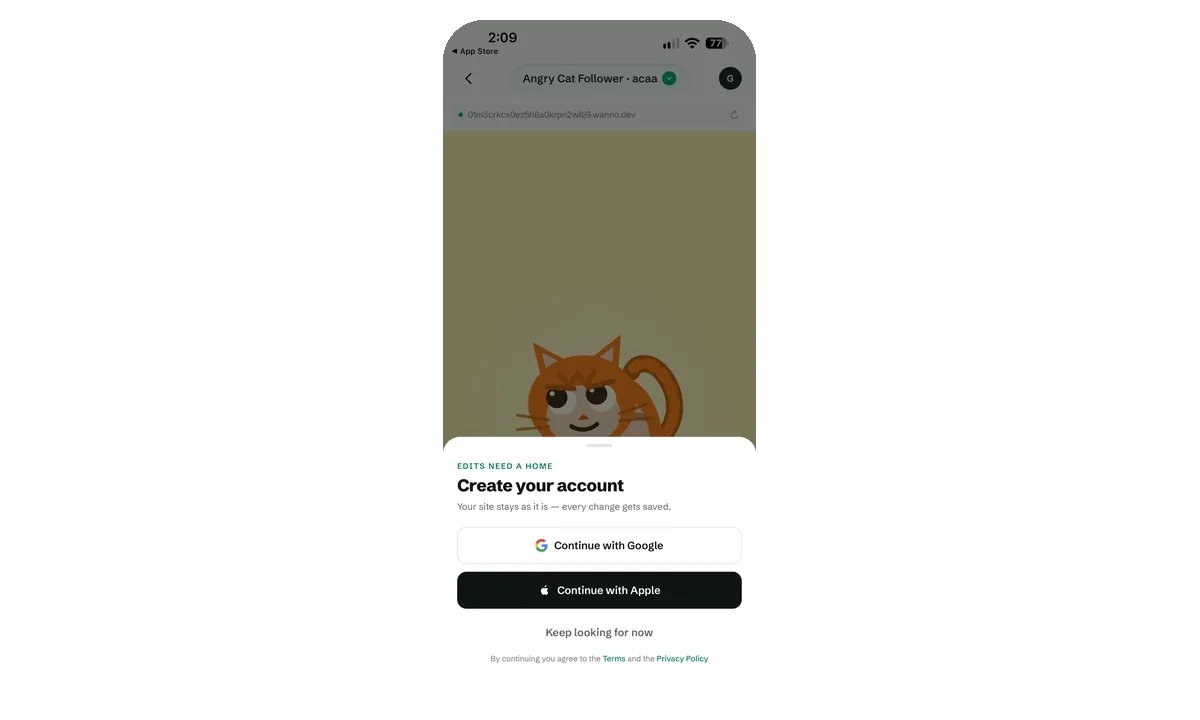
You can build and try a first version without an account. When you go to edit it, wanno asks you to sign in with Google or Apple so the project has a home and every change is saved. Keep looking for now lets you keep exploring the result first.
7. The bottom menu: Chat, Style, Edit, Feedback, Publish
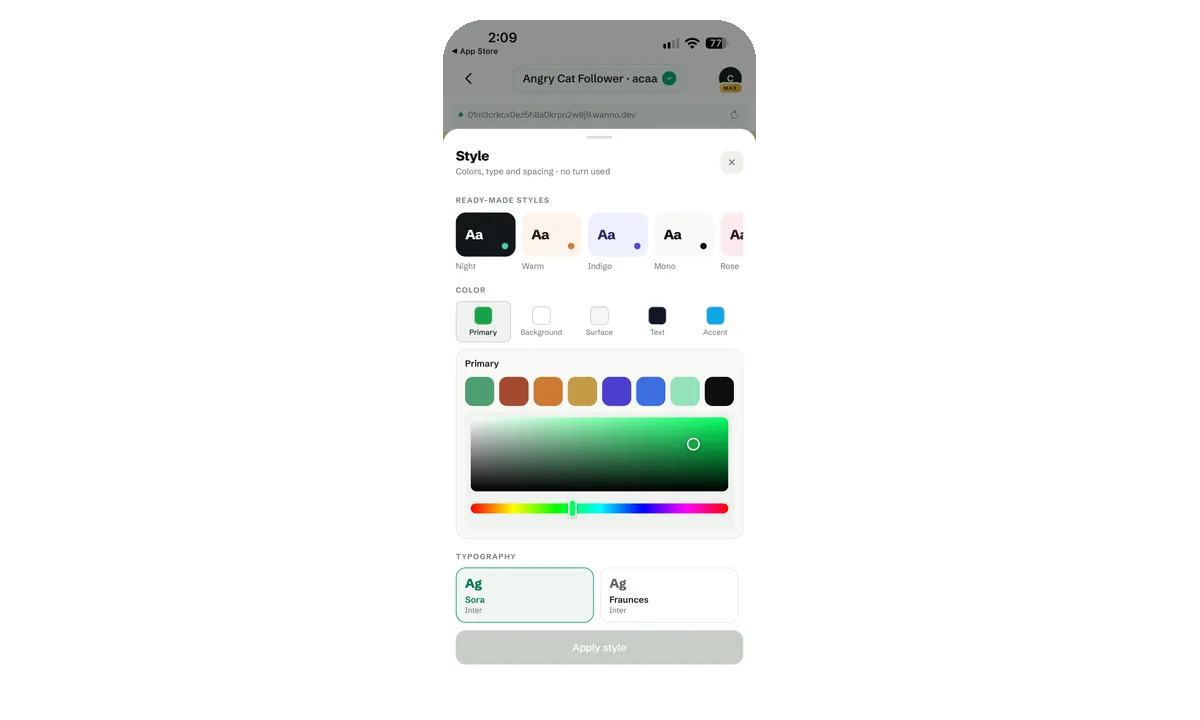
Everything you do after the first build lives in the bottom bar. Style is the first editing tool: ready-made themes (Night, Warm, Indigo, Mono, Rose), individual color roles (Primary, Background, Surface, Text, Accent) with a full picker, and font pairings. Style changes apply directly and use no build turn.
8. Edit: two ways in, touch or voice
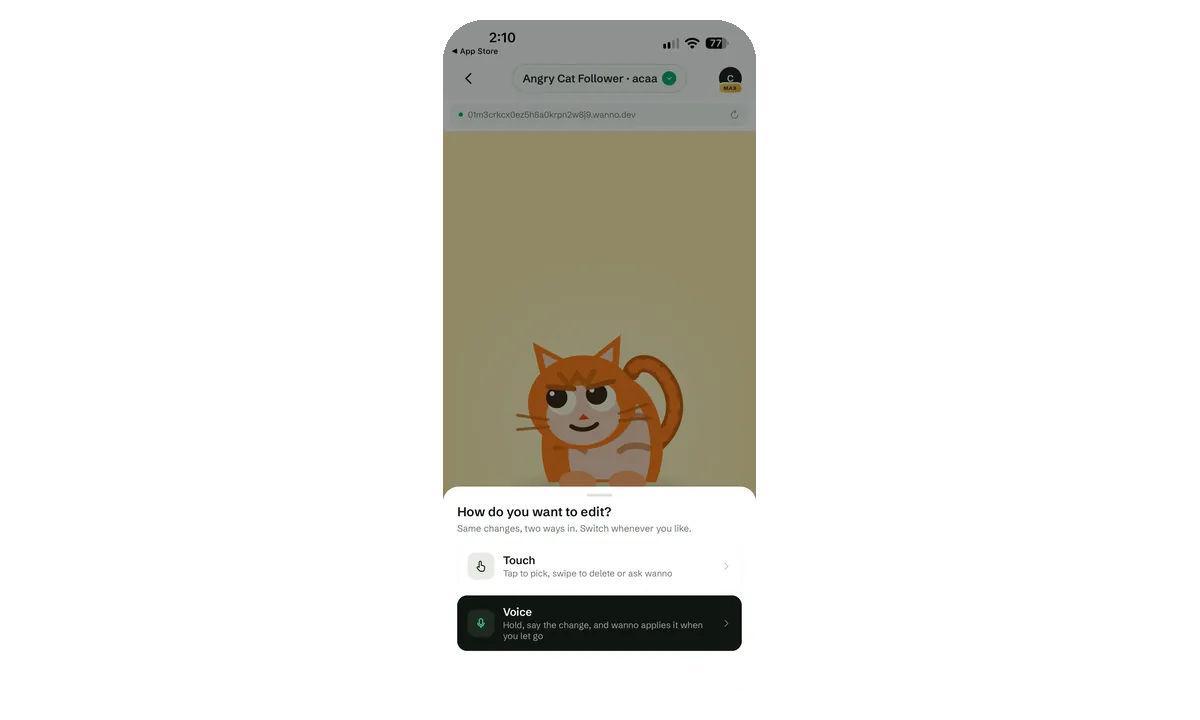
The Edit tab asks how you want to work. Touch lets you tap elements on the preview to select them, swipe to delete, or ask wanno for a change on that element. Voice is hold-to-talk: hold the button, say the change, and wanno applies it when you let go. Both produce the same kind of edits, and you can switch between them at any time.
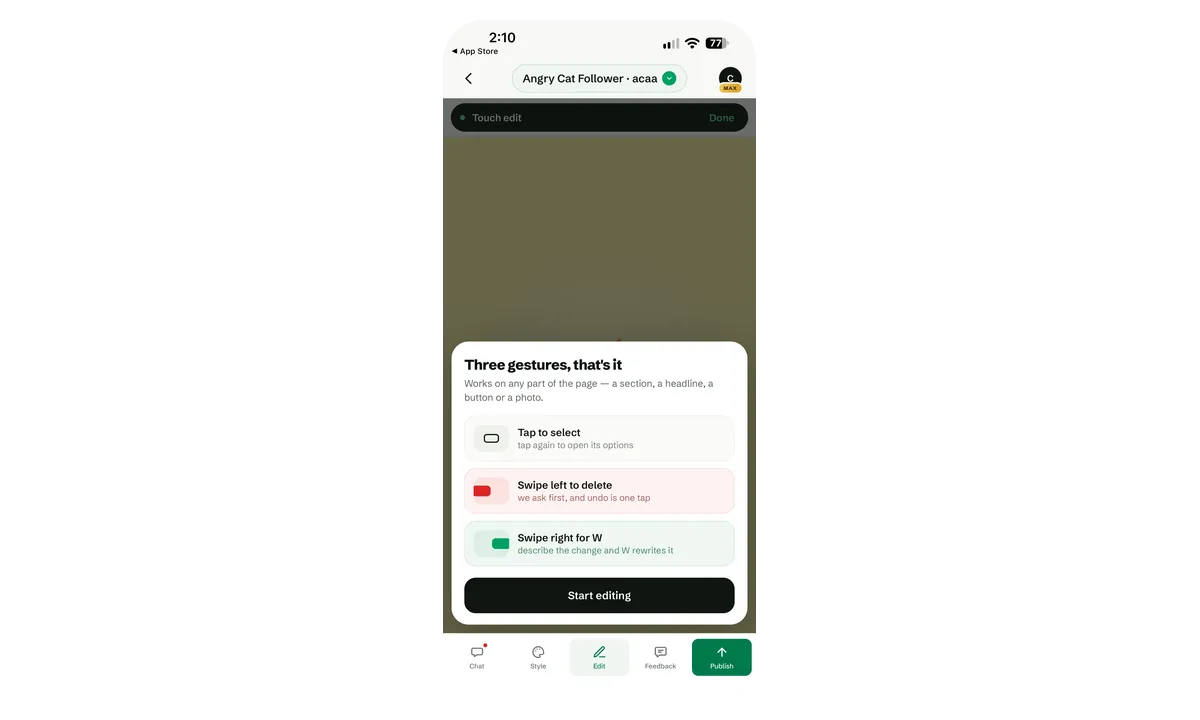
9. Touch editing is three gestures
Touch mode works on any part of the page — a section, a headline, a button, a photo — with three gestures:
- Tap to select. Tap again to open the element's options.
- Swipe left to delete. wanno asks for confirmation first, and undo is one tap.
- Swipe right for W. Describe the change and wanno rewrites just that element.
10. Chat: ask for changes in words
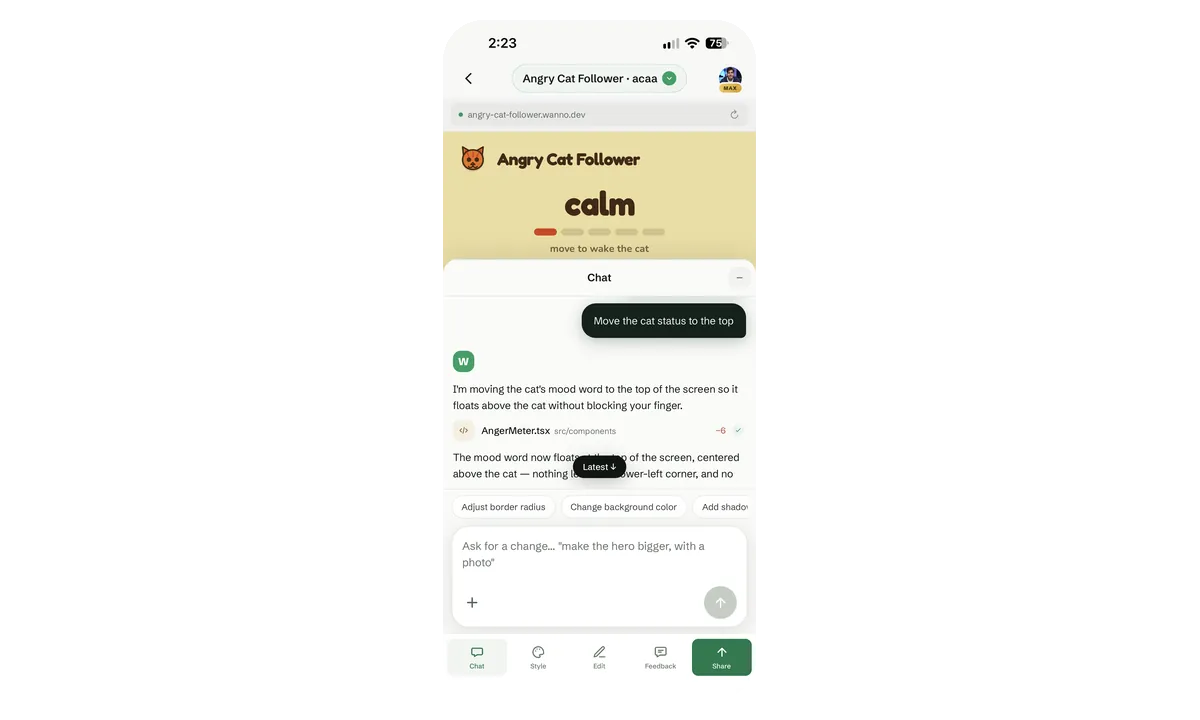
The Chat tab is where you request broader changes. Asking Move the cat status to the top gets a short explanation of what wanno is doing, the file it changed (AngerMeter.tsx) with the line count, and a summary of the result. Quick-action chips under the input (Adjust border radius, Change background color, Add shadow) cover common tweaks without typing.
11. Every change creates a checkpoint
A second request, Create a header with a cat as logo, goes in the same way. The Checkpoint 8 marker above it shows that each completed change is saved as a restore point, so you can try things and roll back.
12. The result in the preview
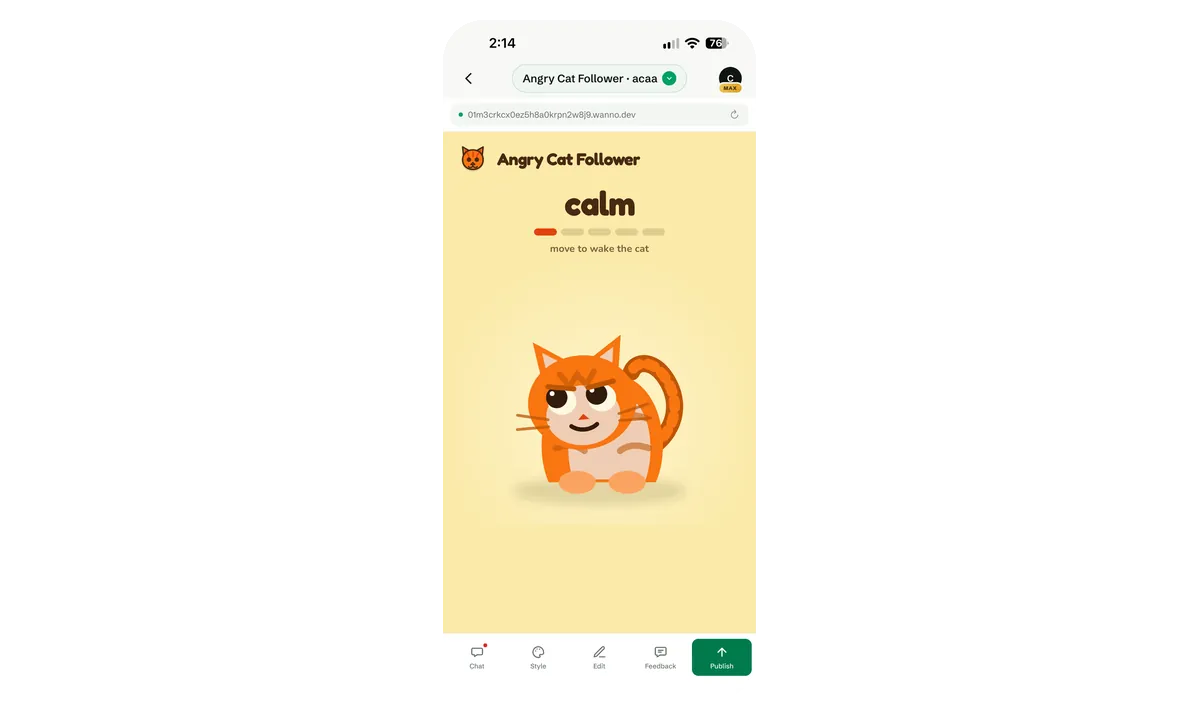
Both changes are reflected in the live preview: a header with a cat logo and the app name, the mood word and meter under it, and the cat below. The original color direction is preserved.
13. Touch edit: select an element and ask for a change
In Touch mode, tapping the logo selects it (wanno labels it svg) and a second tap opens Ask wanno for a change on top of the preview. The suggestions are specific to the element you picked — for an image: Replace this image, Improve the crop, Highlight.
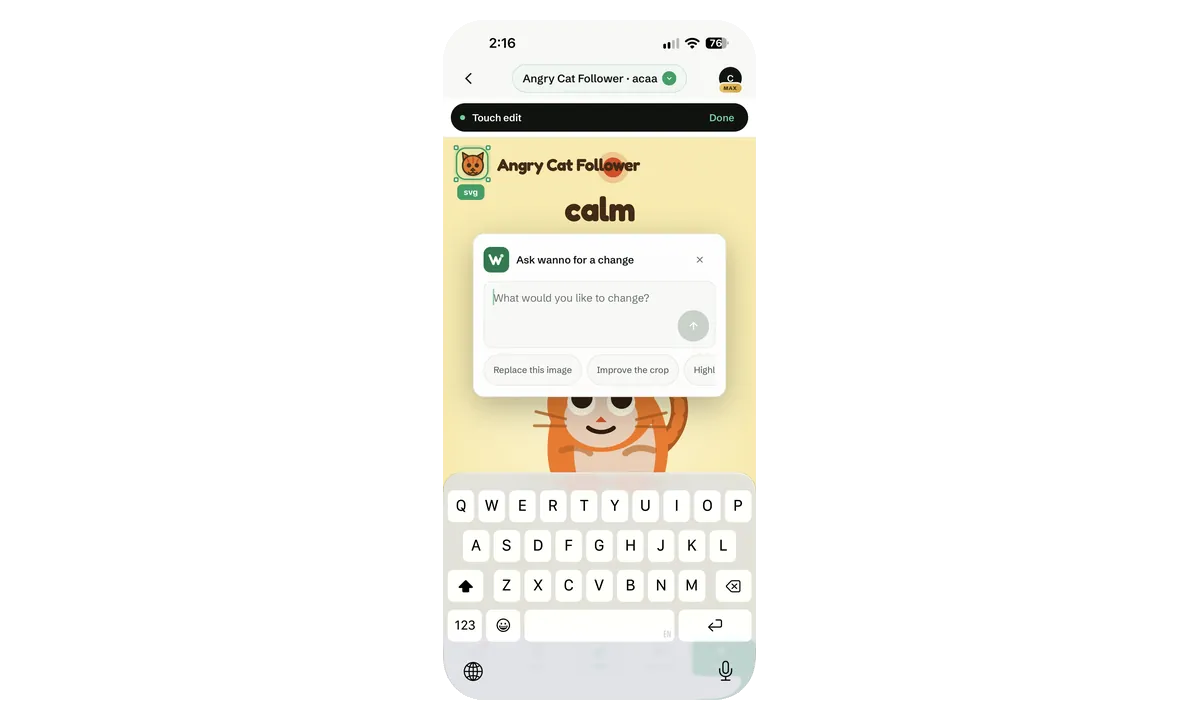
14. Use a suggestion or type your own
Tapping a suggestion fills the box; you can also write the change yourself. Because the request is attached to the selected element, wanno changes only that part instead of regenerating the page.
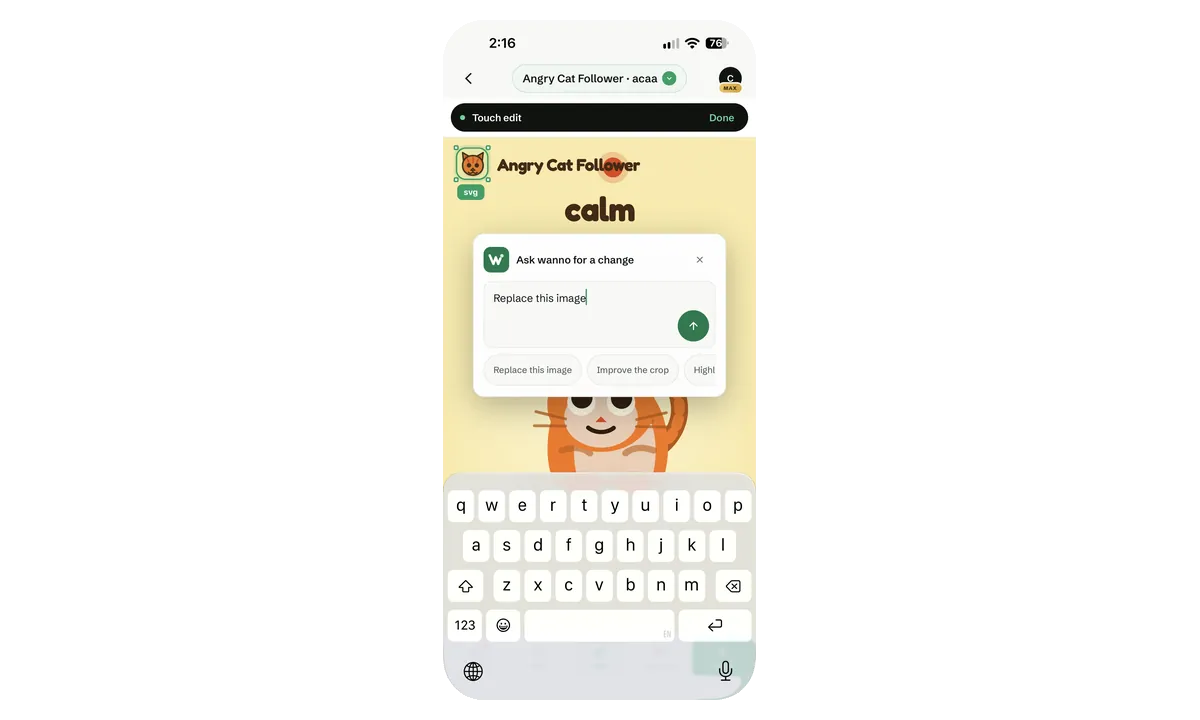
15. Swipe left to remove an element
Selecting a section and swiping left reveals a delete panel, and the bar at the bottom reads Release to delete. Swiping right on the same element would send it to W with a description of the change instead.
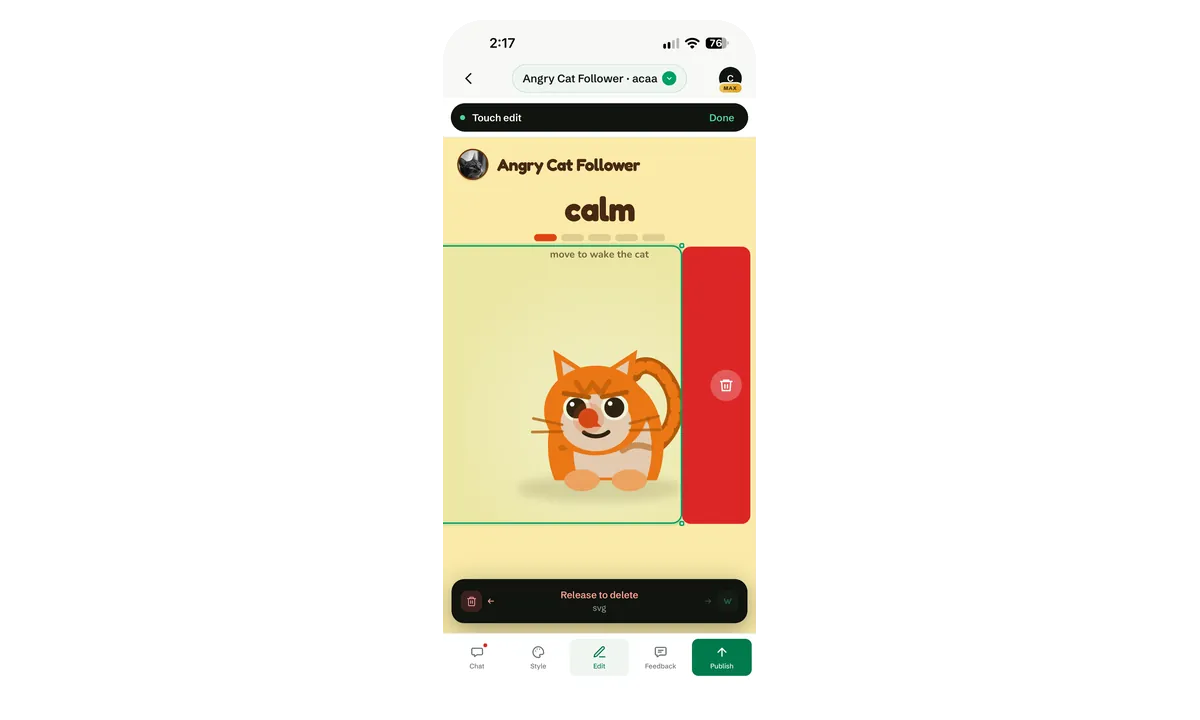
16. Deleting always asks first
On release, wanno confirms: Delete "svg"? with Keep it or Delete. The dialog notes that this uses credit, since wanno removes the element from the code rather than just hiding it.
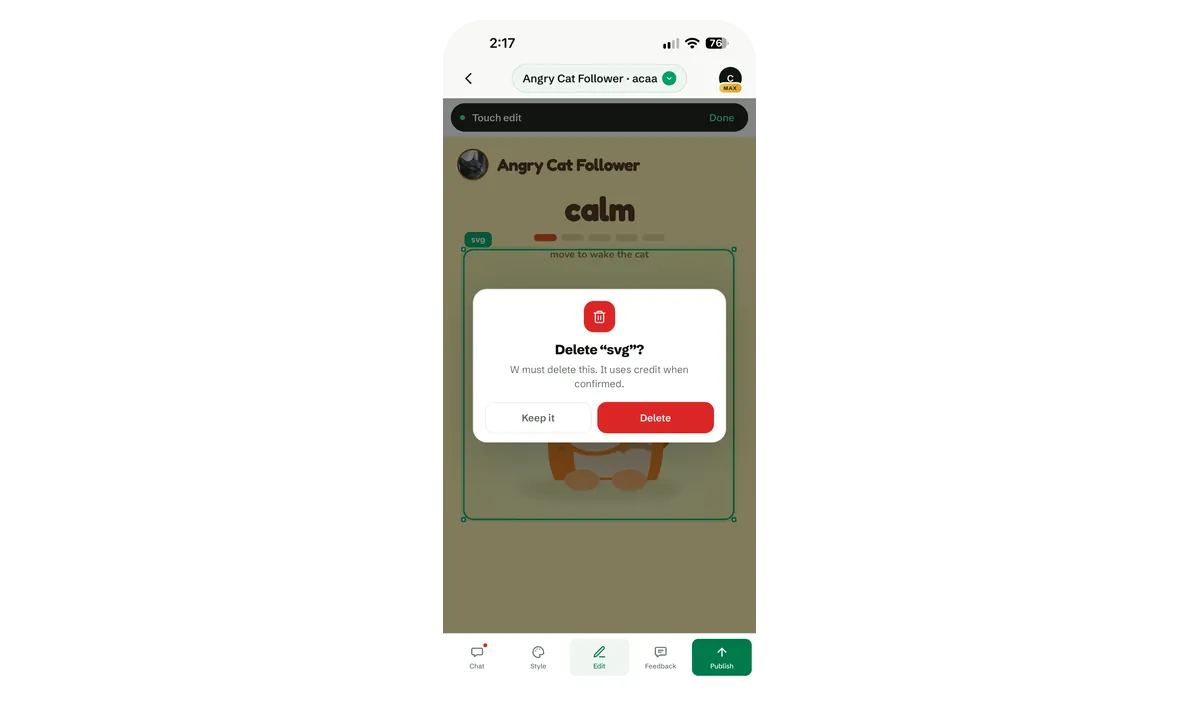
17. Publish from the same screen
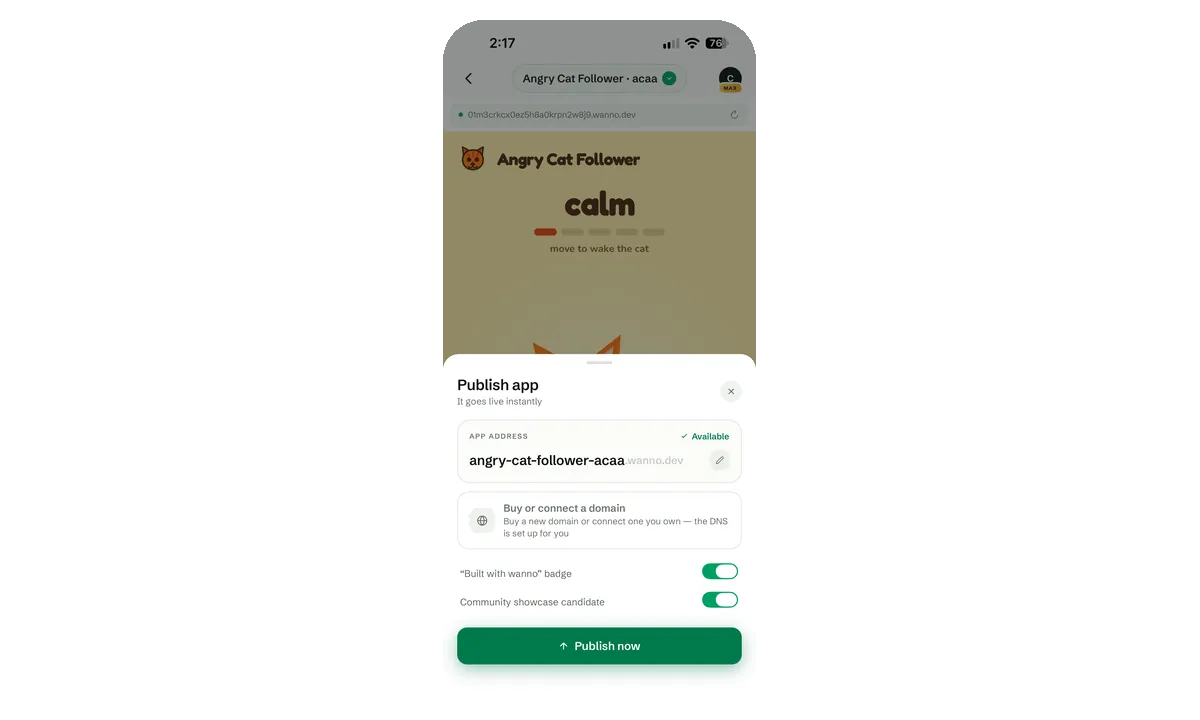
Publish opens a sheet with the proposed address (angry-cat-follower-acaa.wanno.dev, checked as available and editable), the option to buy or connect a custom domain with DNS set up for you, and two toggles: a Built with wanno badge and being a community showcase candidate. Publishing is instant.
18. SEO and sharing
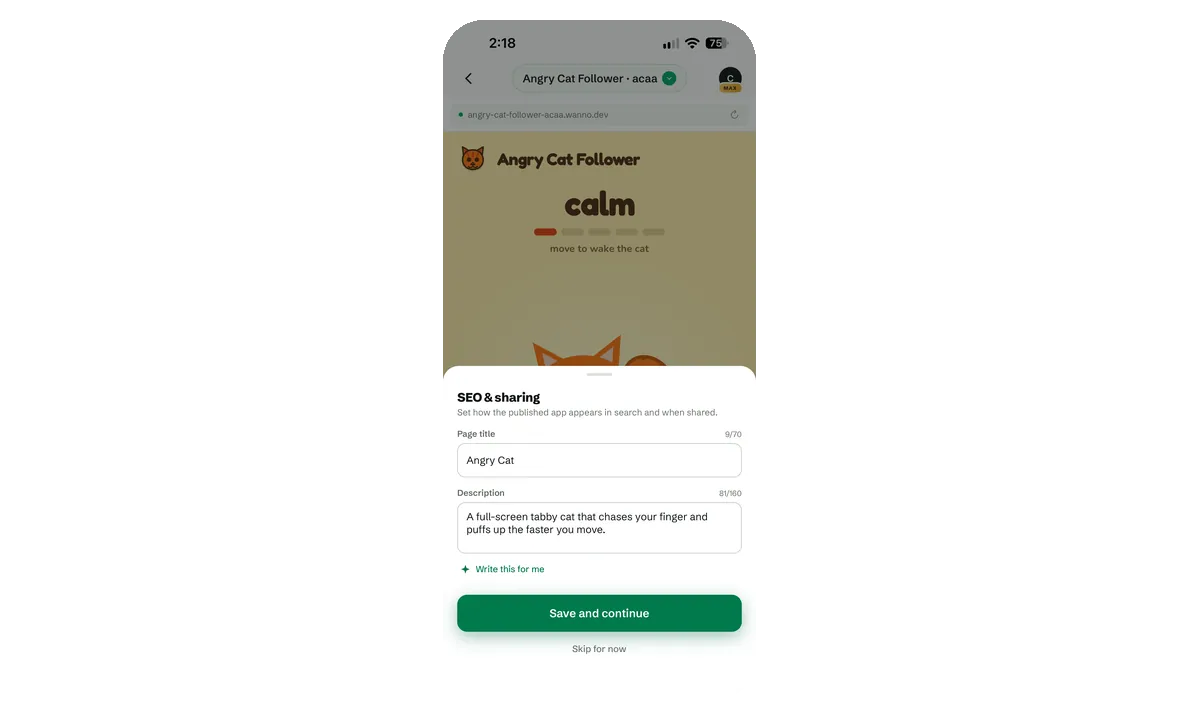
Before going live, an SEO & sharing step lets you set the page title (70 characters) and description (160) that appear in search results and link previews. Write this for me generates them from the app if you'd rather not write them.
19. The app is live
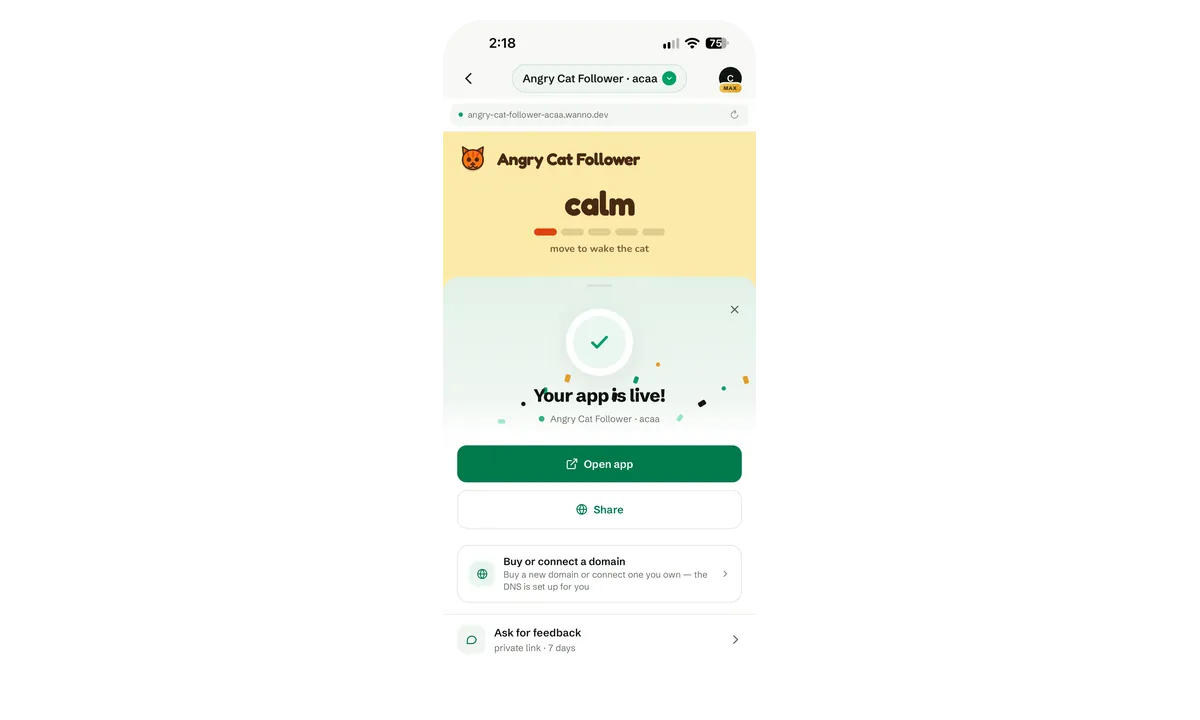
The confirmation screen gives you Open app, Share, the domain option again, and Ask for feedback, which creates a private link valid for 7 days so people can comment before the app is shared widely.
Summary
The whole flow — prompt, build, style, touch and voice editing, chat changes, checkpoints, publishing and SEO — happens on one phone screen, with the live preview always visible. The example app is at angry-cat-follower.wanno.dev.
Get wanno
Install it on your phone and build your first app from the home screen:
- iPhone / iPad: App Store
- Android: Google Play