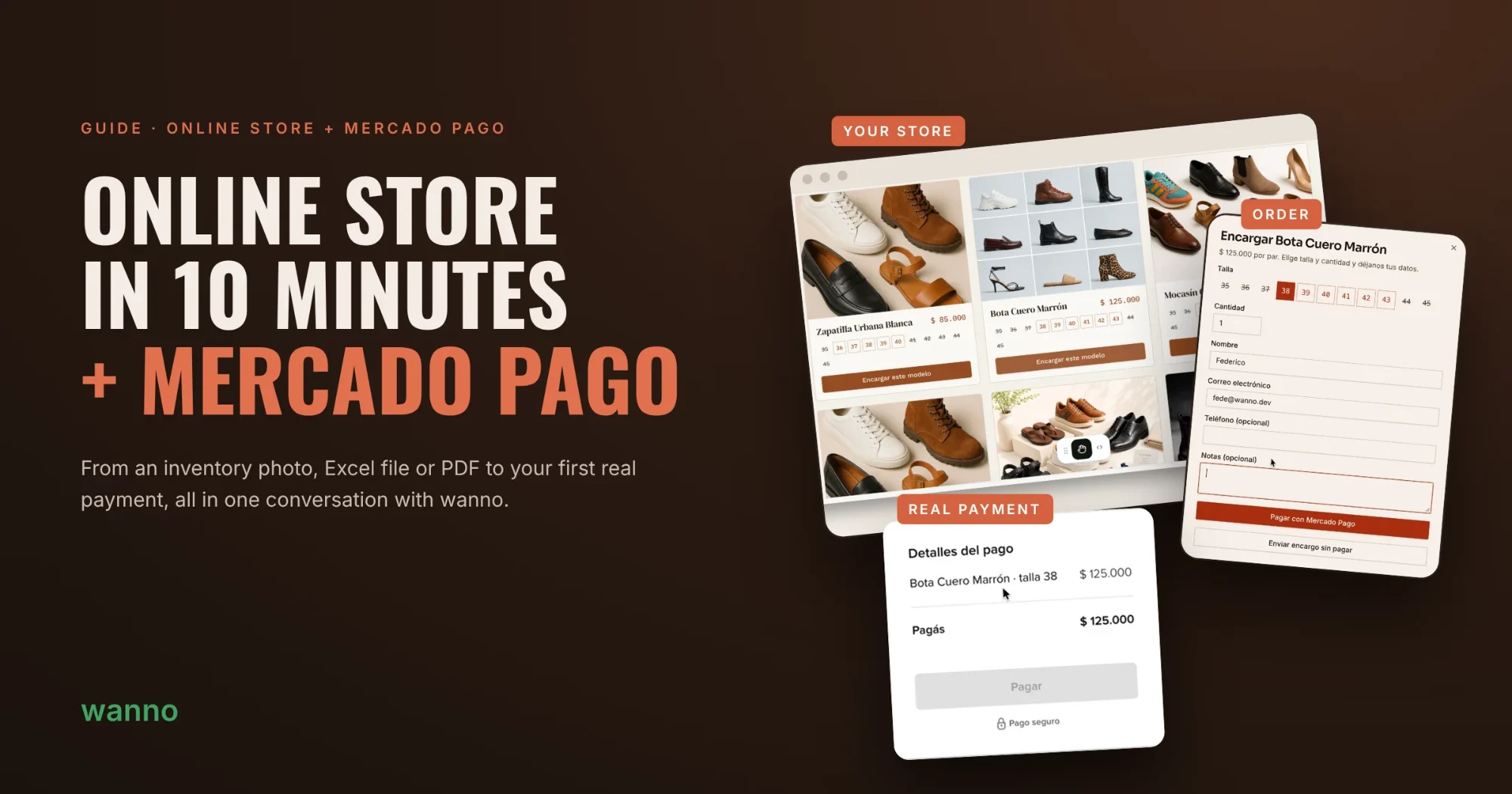
Create your online store in 10 minutes and get paid with Mercado Pago: upload your inventory as a photo, Excel, PDF or Sheets and accept real payments.
To sell online you need three things: a catalog of your products, a way to take orders and a payment method people trust. In this guide we build, in about 10 minutes, the store for a shoe factory using its real inventory and connect it to Mercado Pago, the leading payment platform in Latin America, so customers can pay by card, account balance or any method the checkout offers. Everything happens in a conversation with wanno.
01. Describe your store in one sentence
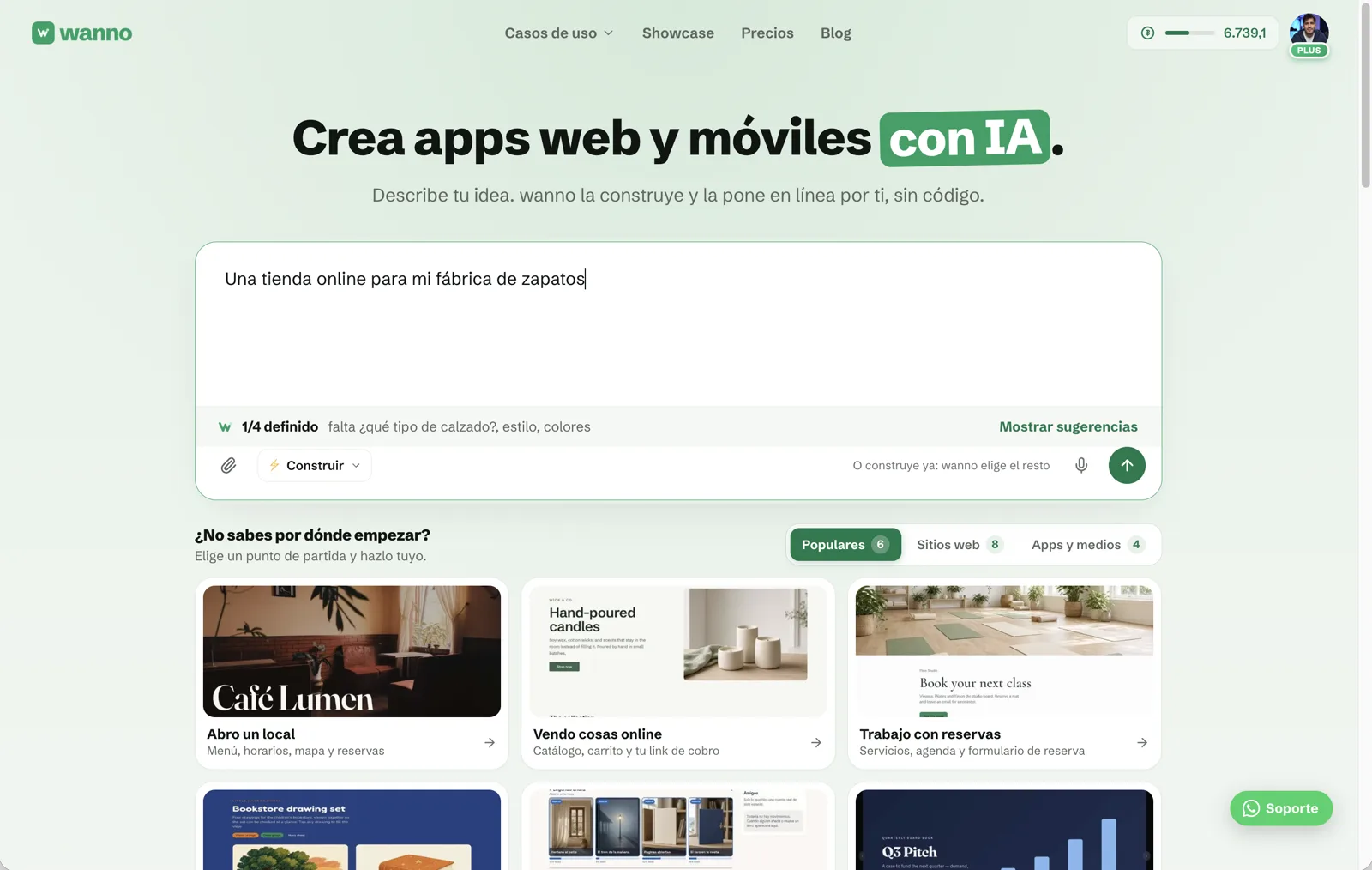
Open wanno and type what you want to sell. One sentence is enough:
An online store for my shoe factory
wanno suggests optional details (type of footwear, style, colors). Fill them in, or hit send and let wanno choose the rest.
02. Choose your admin password
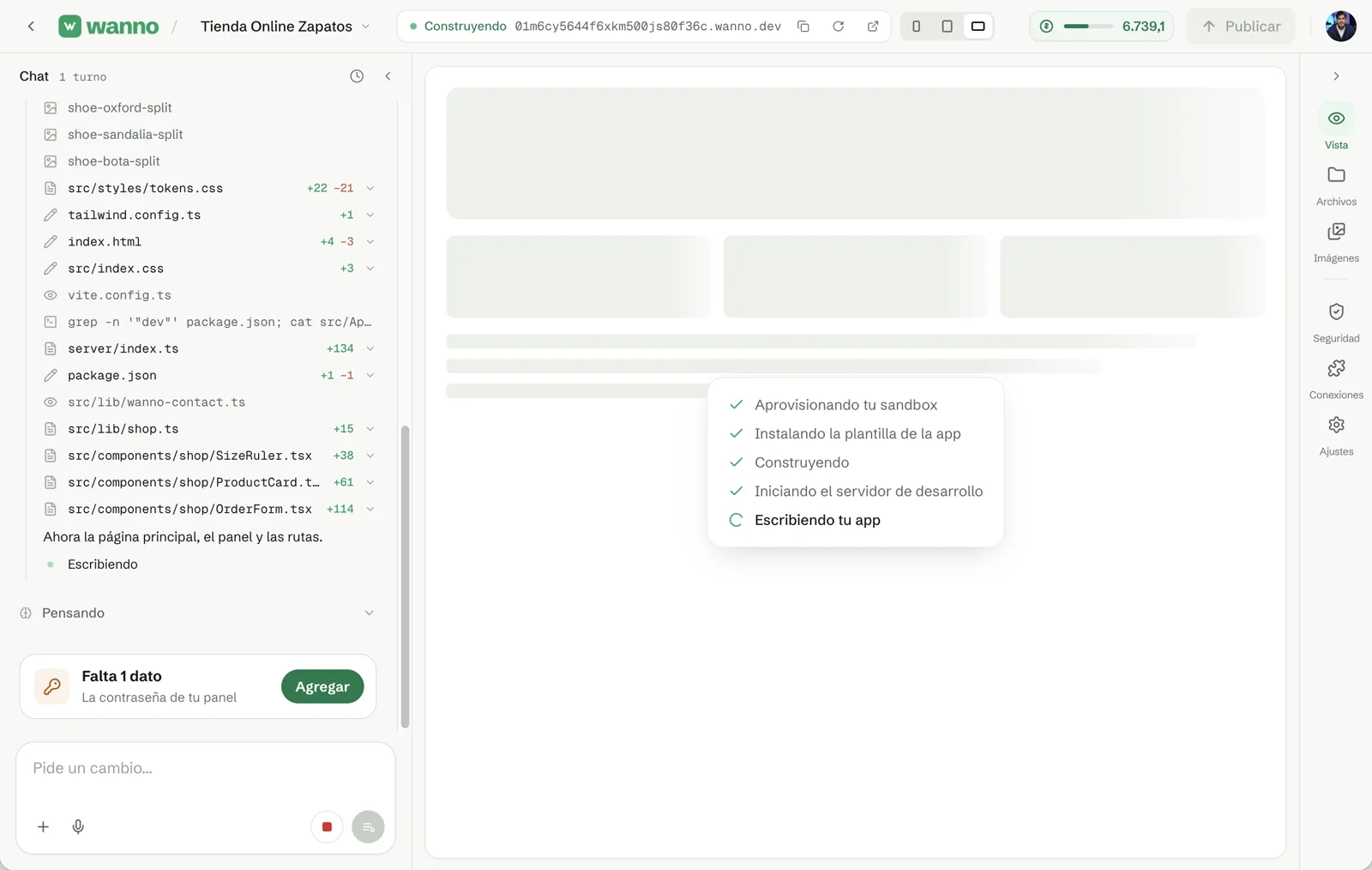
While the store is being built, wanno lets you know one detail is missing: your admin password. Tap Add.
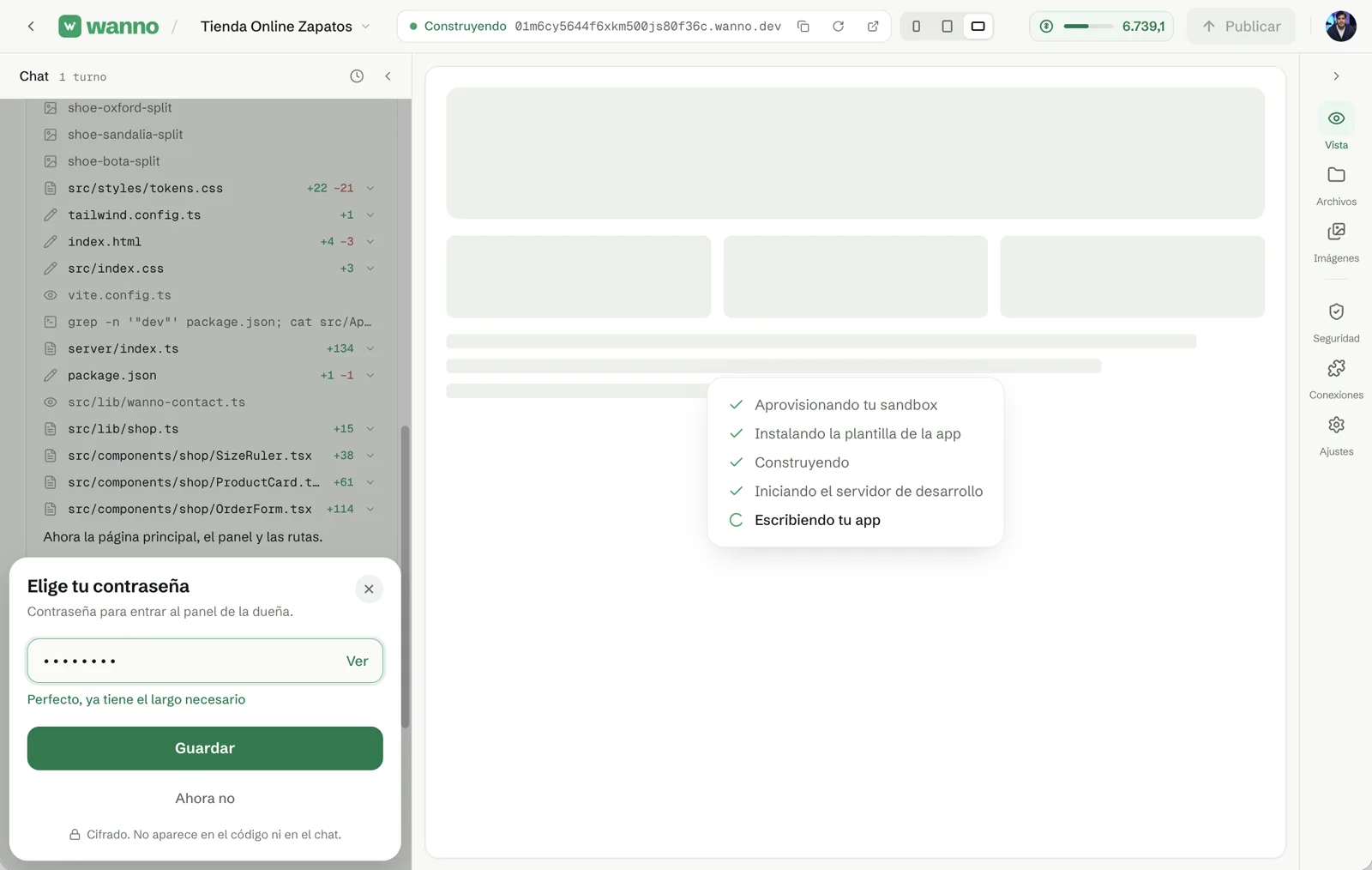
Choose a password for the admin panel, where you will manage products and orders. It is stored encrypted: it never shows up in the code or in the chat.
03. Check out your new store
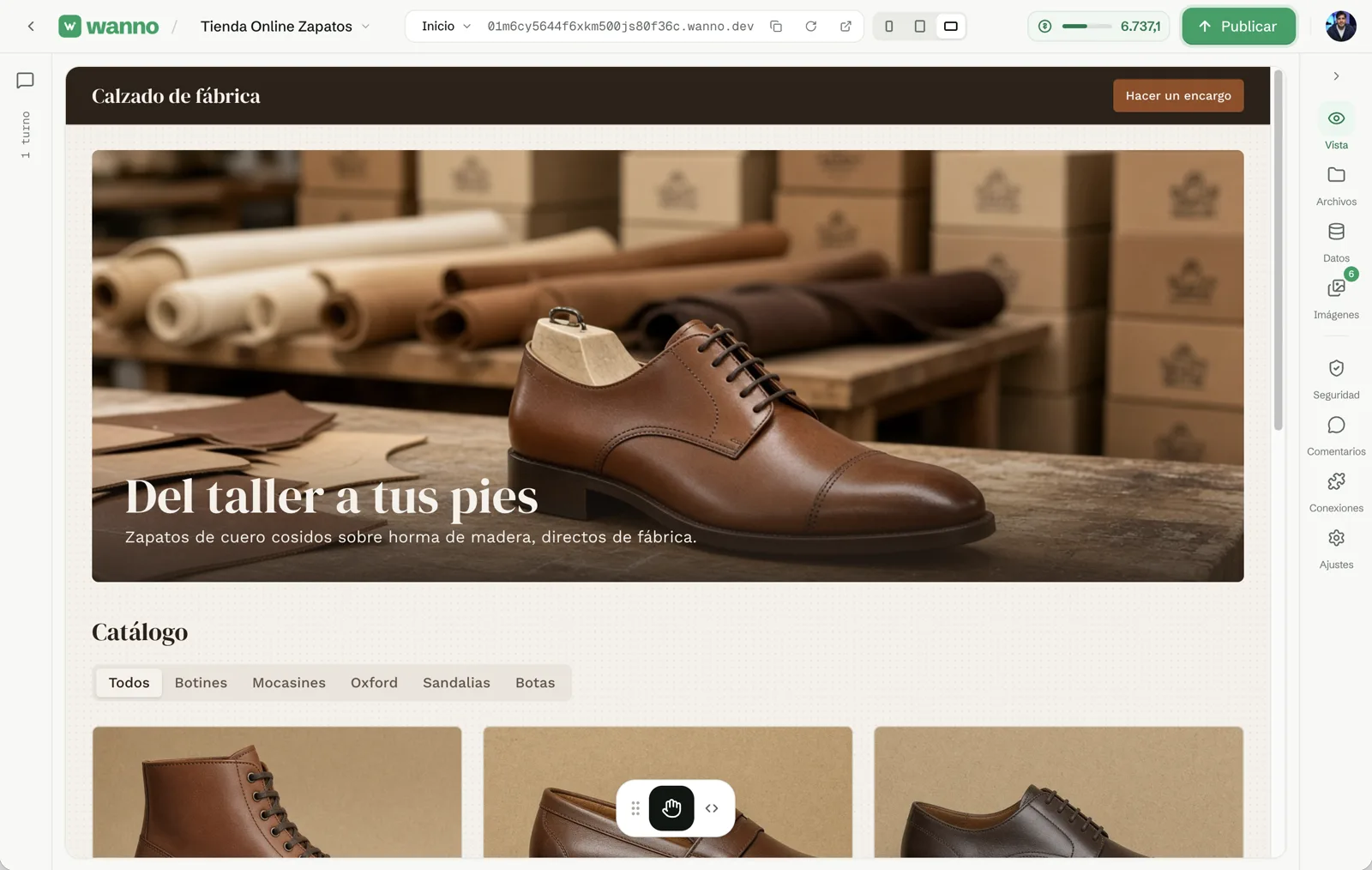
A few minutes later you have a hero section, a catalog with category filters, a size picker for each model and an order button. It already works at your wanno.dev link.
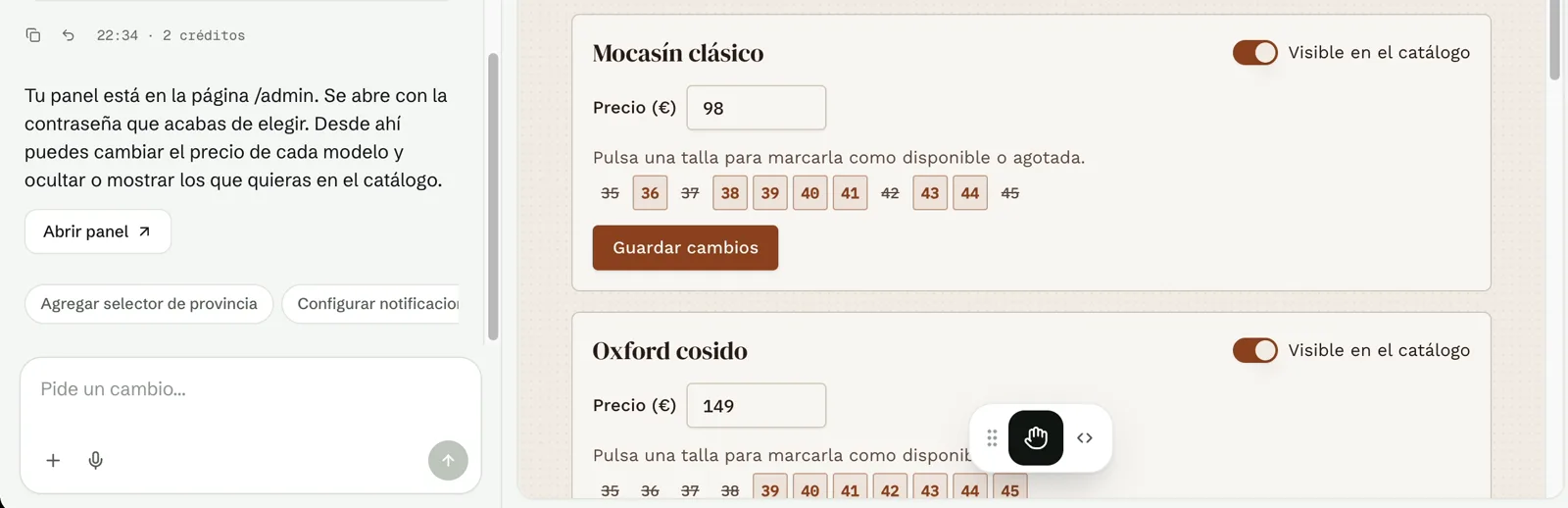
Your admin panel lives at your store's /admin page (the chat shows an Open panel button). Sign in with the password you chose to change prices, mark sizes as available or sold out, and show or hide each model in the catalog.
04. Upload your real inventory, in whatever format you have
Your inventory can come from anywhere: a photo of your price list or catalog, an Excel file, a Google Sheet, a PDF or a text file. wanno reads the products, prices and sizes and builds the catalog from them.
In this example the stock lives in Google Sheets: one row per model with SKU, name, photo link, price in Argentine pesos and size range.
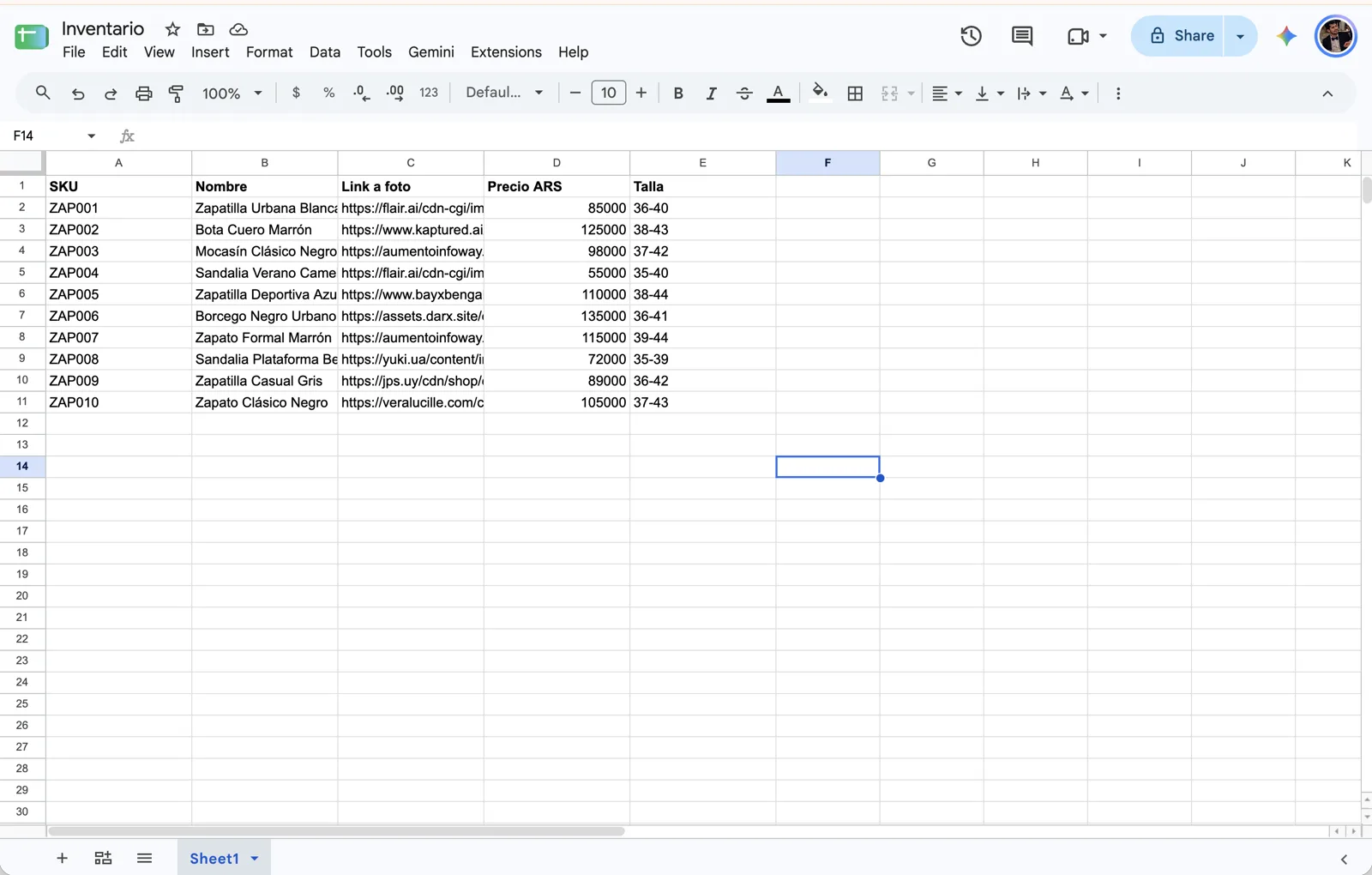
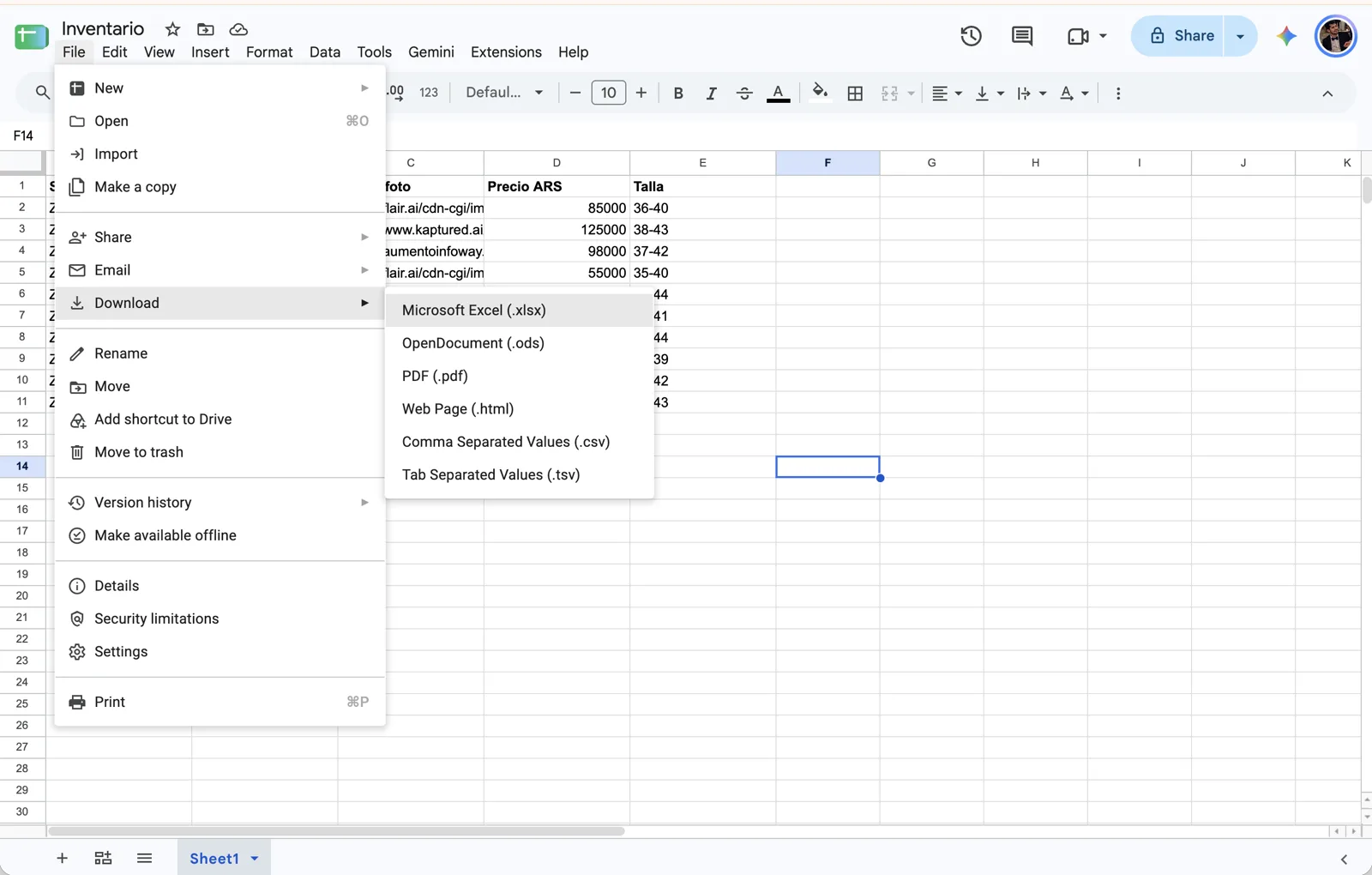
To upload it, download it via File → Download → Microsoft Excel (.xlsx).
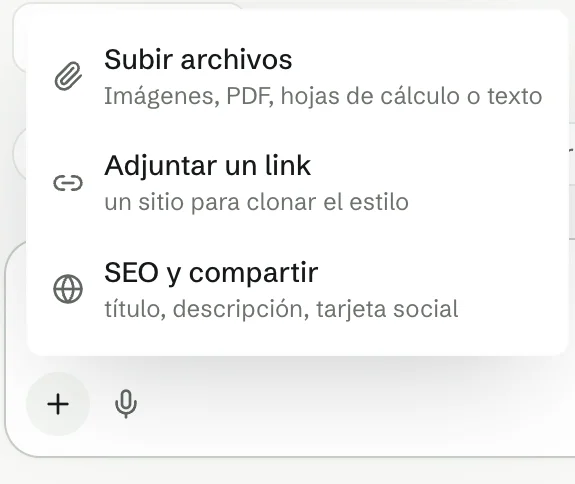
In the wanno chat, tap + → Upload files. The menu itself shows it accepts images, PDFs, spreadsheets or text.
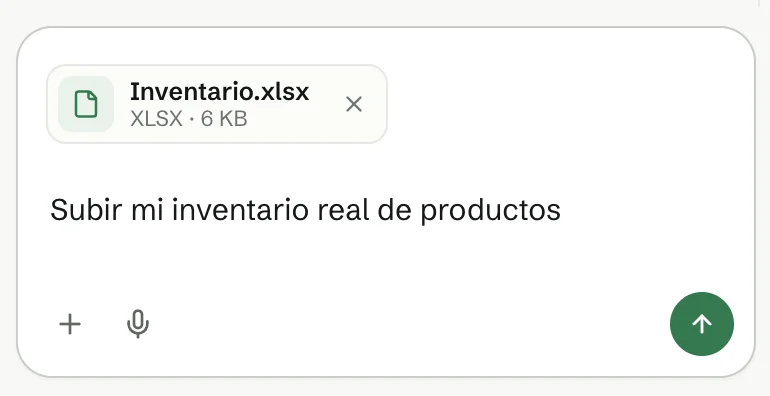
Attach the file and ask:
Upload my real product inventory
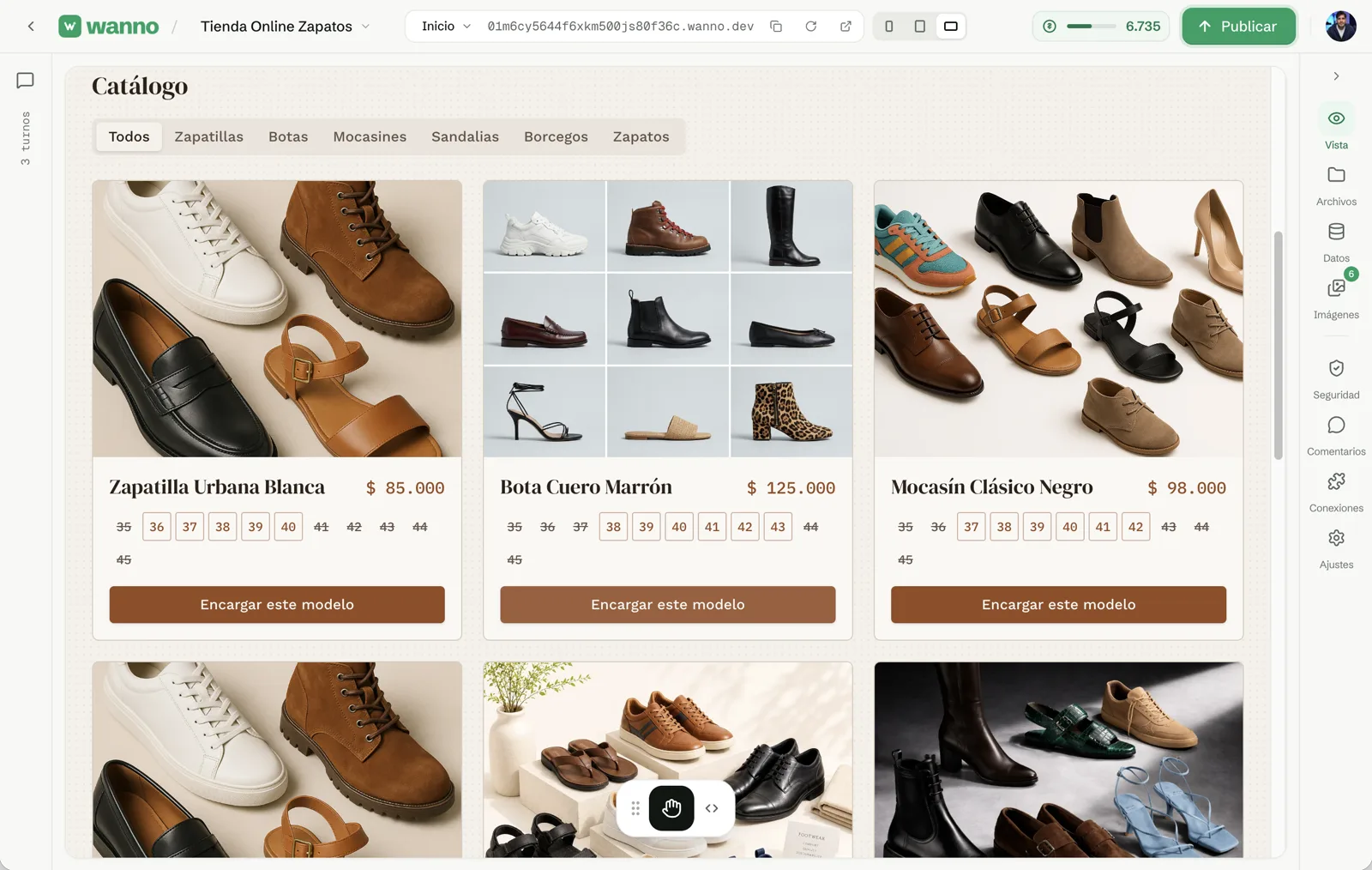
wanno replaces the sample products with yours, including photos, prices and available sizes. Sizes that are out of stock are crossed out.
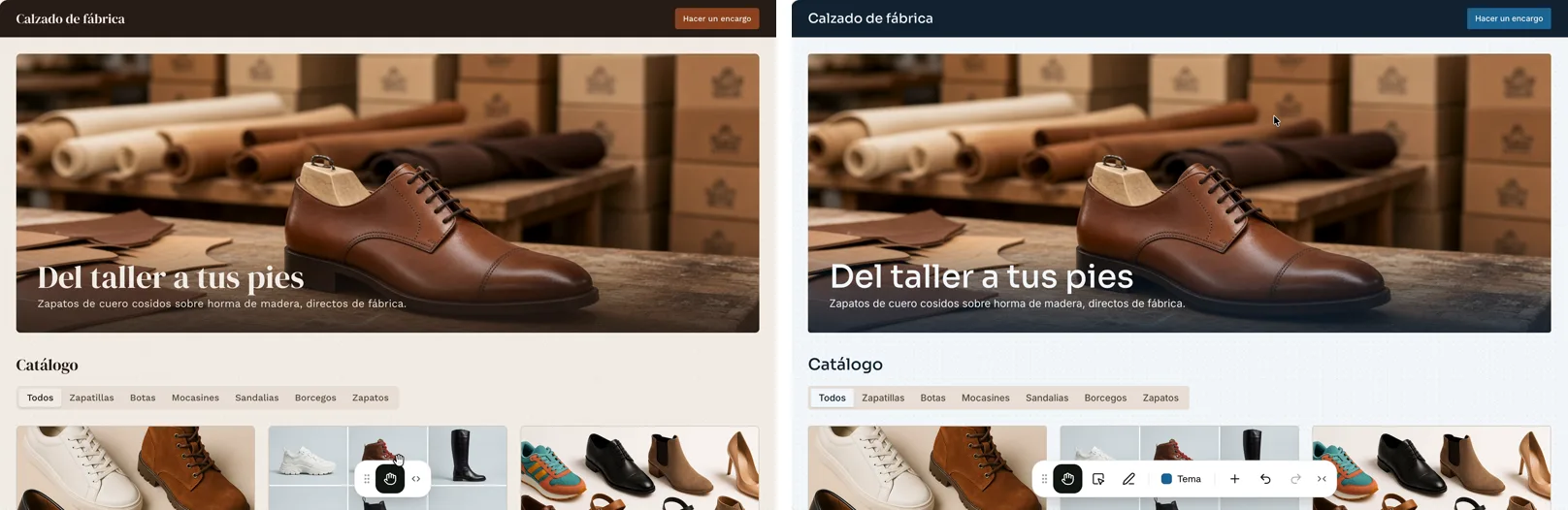
05. Change the colors in one tap
Open Theme in the bottom bar and pick a palette. The change applies to the whole site and costs no credits.
06. Ask for the Mercado Pago integration
Now for payments. Type in the chat:
integrate mercadopago to charge for my products
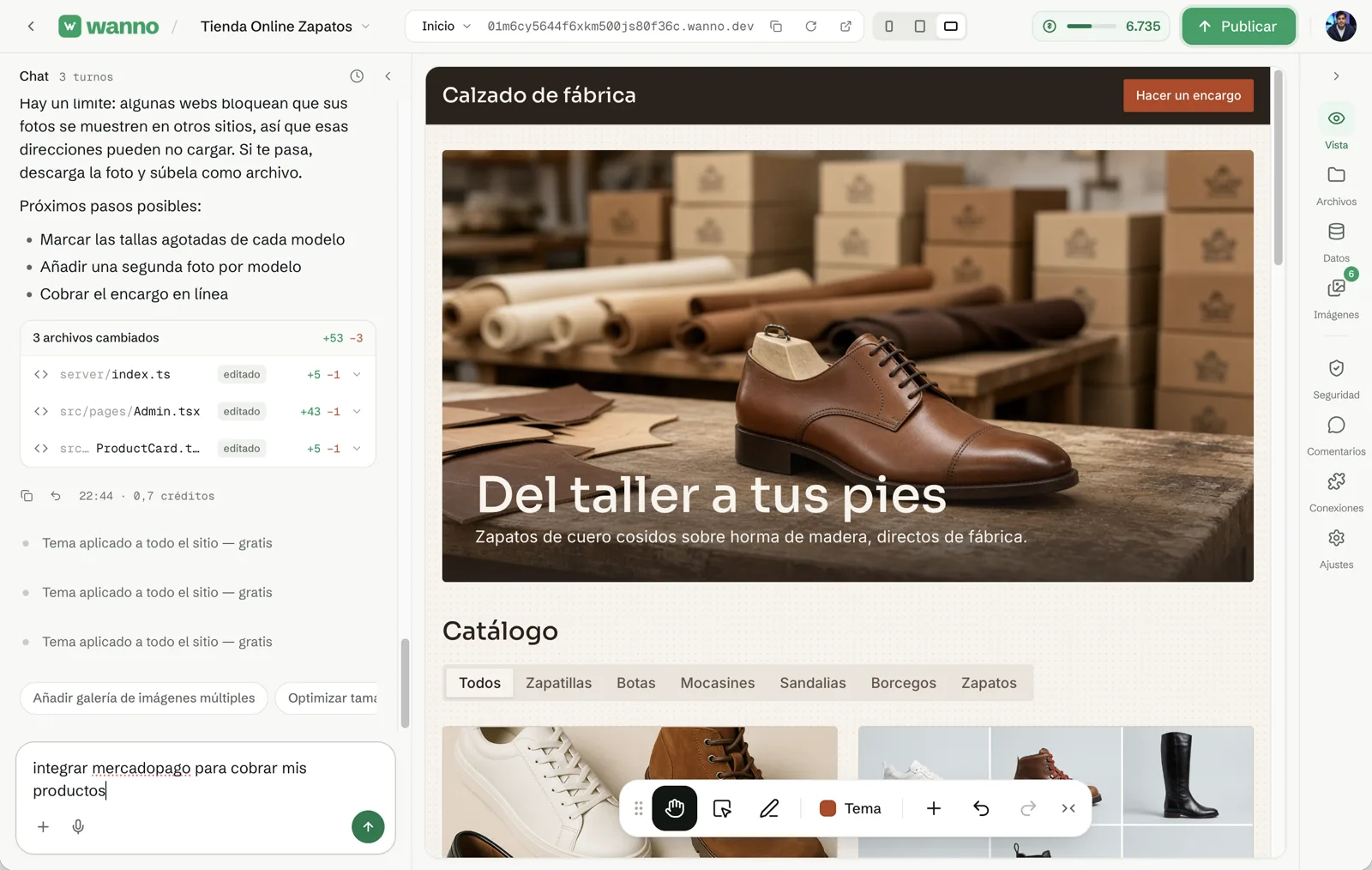
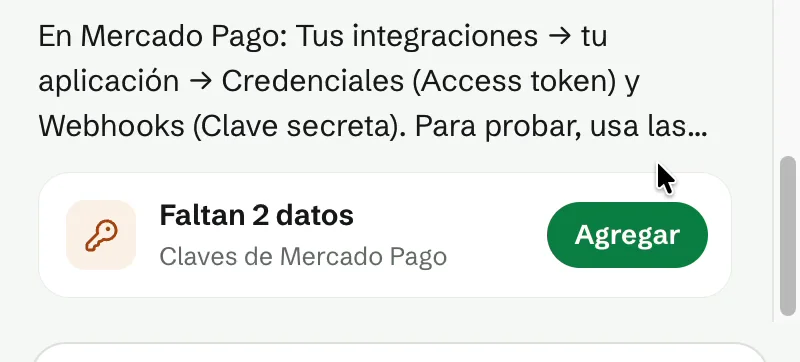
wanno adds the payment button and the backend that creates each charge. When it is done, it tells you two details are missing: the keys from your Mercado Pago account.
07. Create your app in Mercado Pago
The keys come from an "application" inside your Mercado Pago account. You only create it once, and it takes a few minutes:
- Go to Mercado Pago Developers and sign in with the account where you want to receive the money.
- Under Your integrations, tap Create application.
- Give it a name (for example, "Shoe Store"), say you will accept online payments and, if it asks which product, choose Checkout Pro. Accept the terms and confirm.
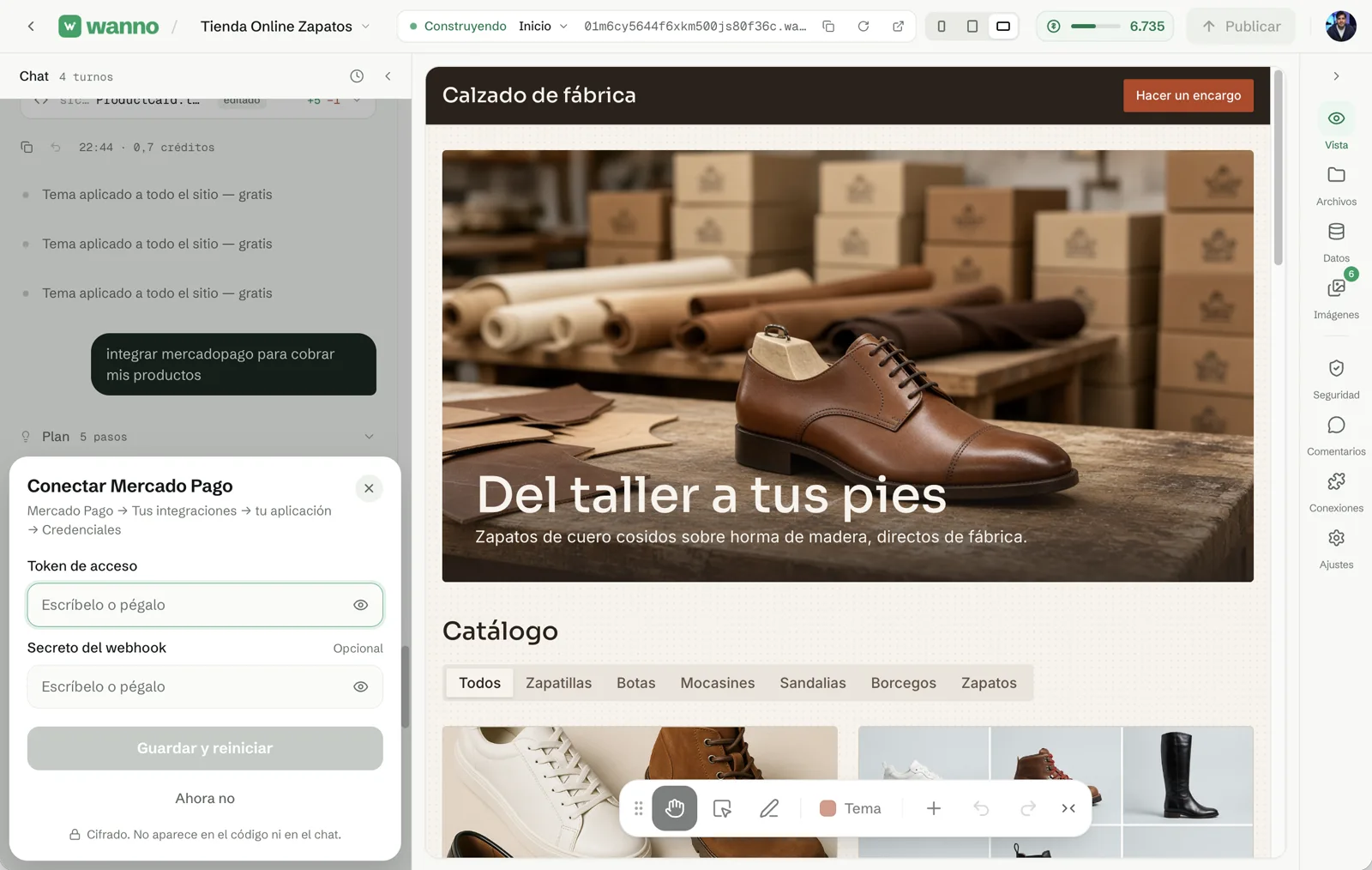
- Inside the application, open Credentials. To take real payments, activate the production credentials (it asks for your industry and your site address: use your wanno link) and copy the Access Token, which starts with
APP_USR-. - In the application menu, open Webhooks → Configure notifications. Paste the notification URL for your store that wanno gives you, check the Payments event and save.
- Copy the secret key shown on that same screen.
If you would rather test without real money first, use the test credentials Mercado Pago creates automatically with the application, and swap them for the production ones when you are ready.
08. Paste your credentials into wanno
Back in wanno, tap Add and paste the Access Token and the webhook secret. Tap Save and restart. Like the admin password, they are stored encrypted and never appear in the code or in the chat.
09. Place a test order
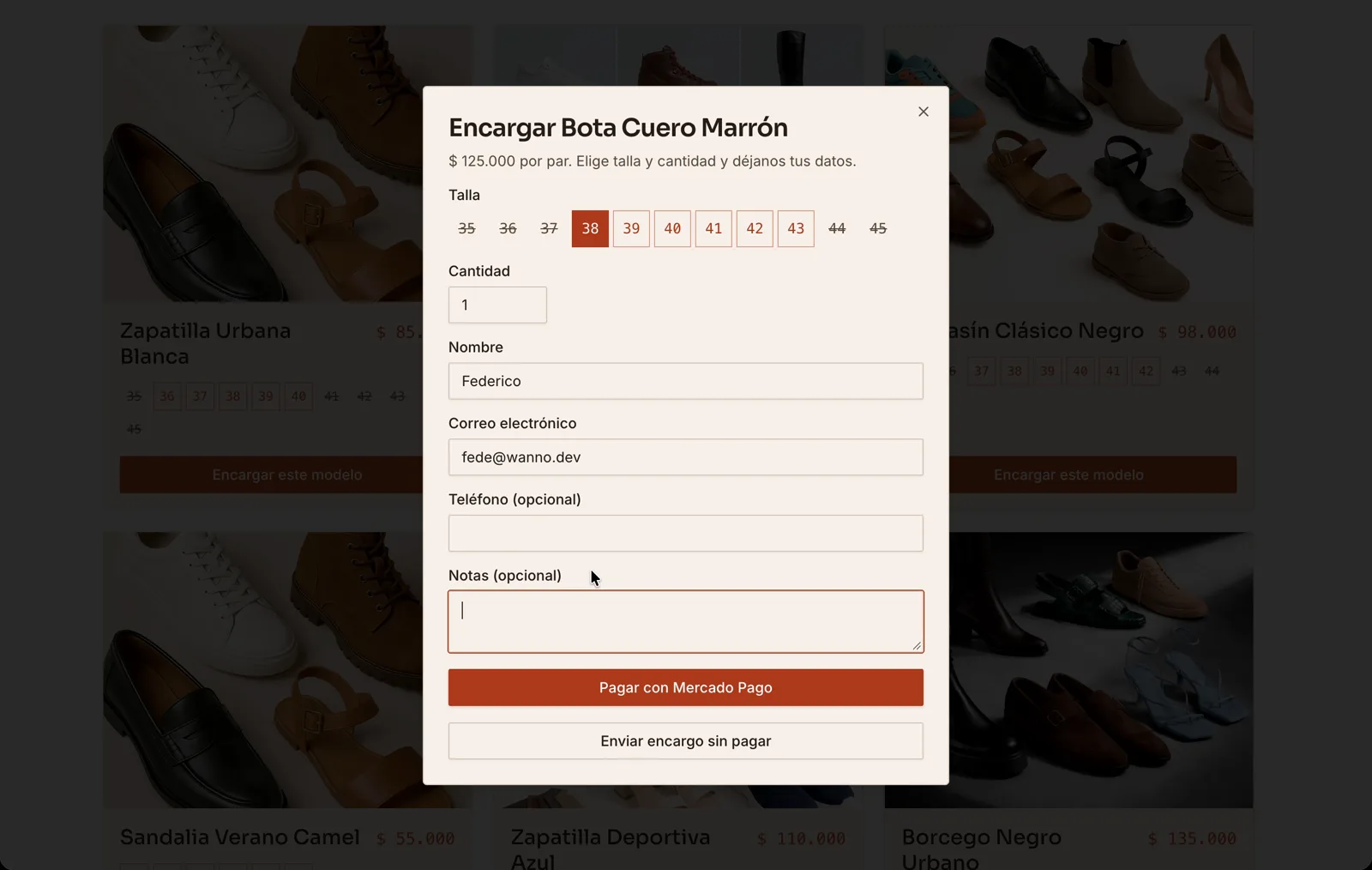
Open your store, pick a model and tap Order this model. The form asks for size, quantity, name and email, and gives two options: Pay with Mercado Pago or send the order without paying.
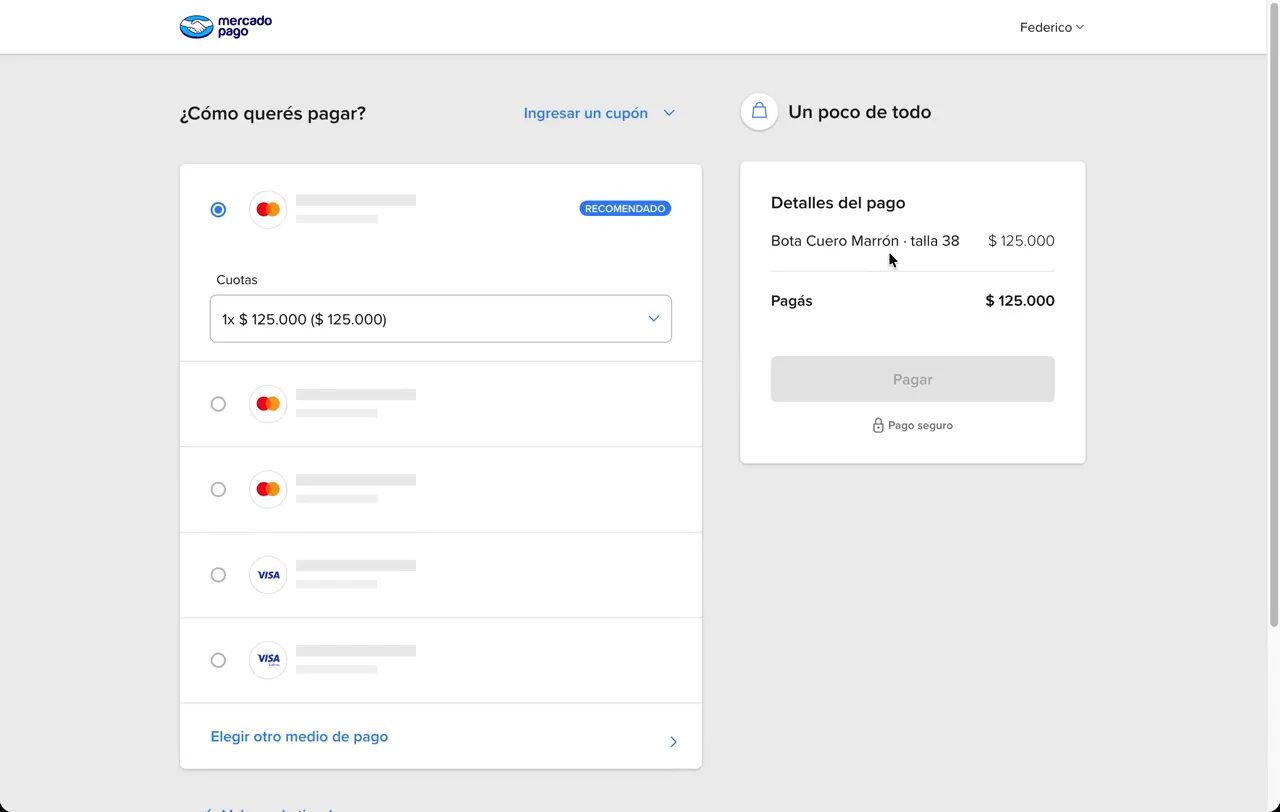
When the customer taps Pay with Mercado Pago, they land on the official checkout with the product, size and total already filled in. They can pay with saved cards, in installments or with another method.
What you built
An online store with your real catalog, an admin panel and Mercado Pago payments, without writing a line of code. When you want to share it, tap Publish and send the link over WhatsApp or social media. If you need more, like shipping costs or a confirmation email for customers, ask for it in the same chat.
Frequently asked questions
Do I need to know how to code to integrate Mercado Pago? No. You ask for the integration in plain language and only copy two keys from your Mercado Pago account.
Does the money go straight to my account? Yes. Payments are credited to the Mercado Pago account that owns the application. Mercado Pago charges its own fee per sale, depending on your country and the payout timing you choose.
Can I test without charging real money? Yes. Use your application's test credentials and swap them for production ones when you want to start selling.
What format does my inventory need to be in? Whatever you already have: a photo, an Excel file, a Google Sheet, a PDF or plain text. No special template needed.
Can I update the inventory later? Yes. Edit products from the admin panel or upload your inventory again in the chat.
Read next: Lovable Alternatives in 2026